
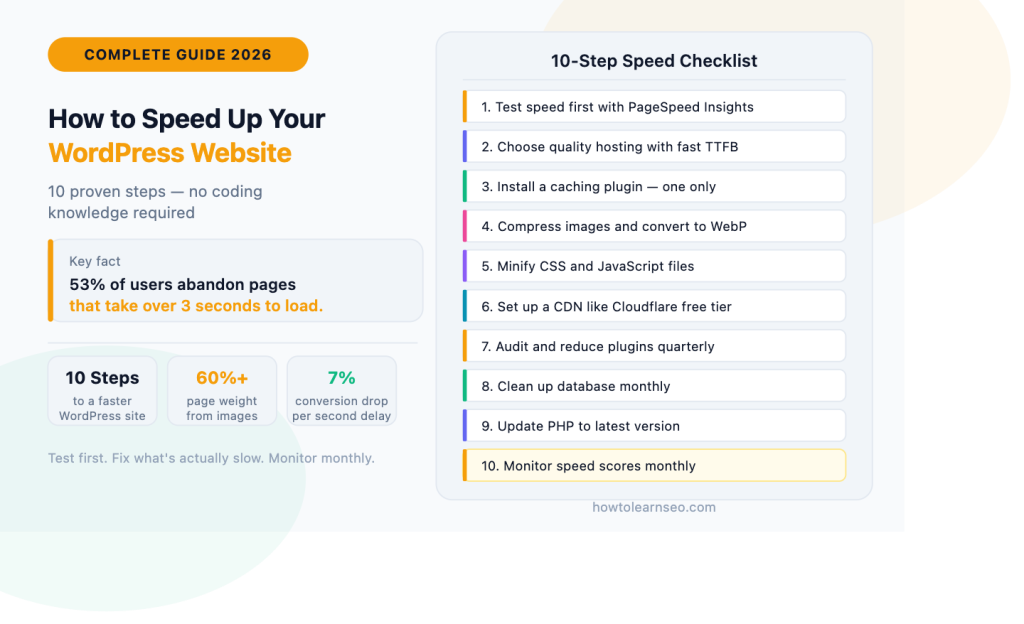
A slow WordPress site is one of the most damaging — and most fixable — problems in SEO. Google has confirmed that page speed is a direct ranking factor. Users abandon pages that take more than three seconds to load. And with over 60% of searches happening on mobile devices where connections are slower and less reliable, every unnecessary second of load time is costing you traffic, rankings, and revenue. The good news is that most WordPress speed problems come from the same handful of causes — and fixing them doesn’t require any coding knowledge. This guide walks through every step in plain English.
Why WordPress Speed Matters More in 2026
Speed has always mattered for user experience. In 2026 it matters for three distinct reasons that directly affect your bottom line.
It is a confirmed Google ranking factor. Through Core Web Vitals — LCP, INP, and CLS — Google measures the performance of every page it crawls and uses those scores as direct ranking signals. A slow page will consistently rank below a faster competitor with similar content, regardless of how good that content is.
It directly affects how many visitors stay on your site. Research shows that 53% of mobile users abandon a page that takes more than three seconds to load. A one-second delay in page load time reduces conversions by 7%. These aren’t abstract statistics — they are measurable losses happening on every slow page every day.
It affects AI search visibility. In 2026, AI systems like Google AI Overviews and ChatGPT Search need to access and read your content quickly to cite it as a source. Pages that load slowly or have rendering issues are less reliably indexed by AI crawlers — which means slower sites lose out on AI citation visibility as well as traditional rankings.
When we first checked howtolearnseo.com’s PageSpeed Insights score after launch, it was sitting at 64 on mobile. Not terrible — but not good enough. The single biggest issue was uncompressed images. After converting all images to WebP format and compressing each one below 100kb before uploading, the score jumped to 79 without touching anything else. That one change alone made the biggest difference.
Step 1 — Test Your Speed First
Before making any changes, establish your baseline. Many site owners start optimising randomly without knowing what’s actually causing the slowdown — which wastes time and occasionally makes things worse.
Use these two free tools to diagnose your current performance:
Google PageSpeed Insights at pagespeed.web.dev — Enter your URL and get a detailed score for both mobile and desktop. This is the most important tool because it uses real Chrome user data, not just simulated tests. It shows your Core Web Vitals scores — LCP, INP, and CLS — with specific recommendations for each issue it finds. Target above 70 on mobile as a minimum. Above 90 is excellent.
GTmetrix at gtmetrix.com — Free account available. Tests your site from different locations and provides a waterfall chart showing exactly which resources are loading slowest. Useful for identifying specific files causing delays.
Always test from at least two tools before making changes. Each measures slightly different things from different server locations, and a single test can give a misleading result.
Step 2 — Choose Quality Hosting
Your hosting provider is the single most foundational speed factor — and the one most beginners underinvest in. On cheap shared hosting, your site shares server resources with hundreds of other websites. When any of those sites gets a traffic spike, your load times suffer too.
What to look for in WordPress hosting for speed:
- PHP 8.1 or higher — PHP 8.x is significantly faster than older versions
- Built-in server-level caching — reduces the load on your server dramatically
- SSD storage — much faster than traditional HDD hosting
- Server location close to your primary audience — every kilometre adds latency
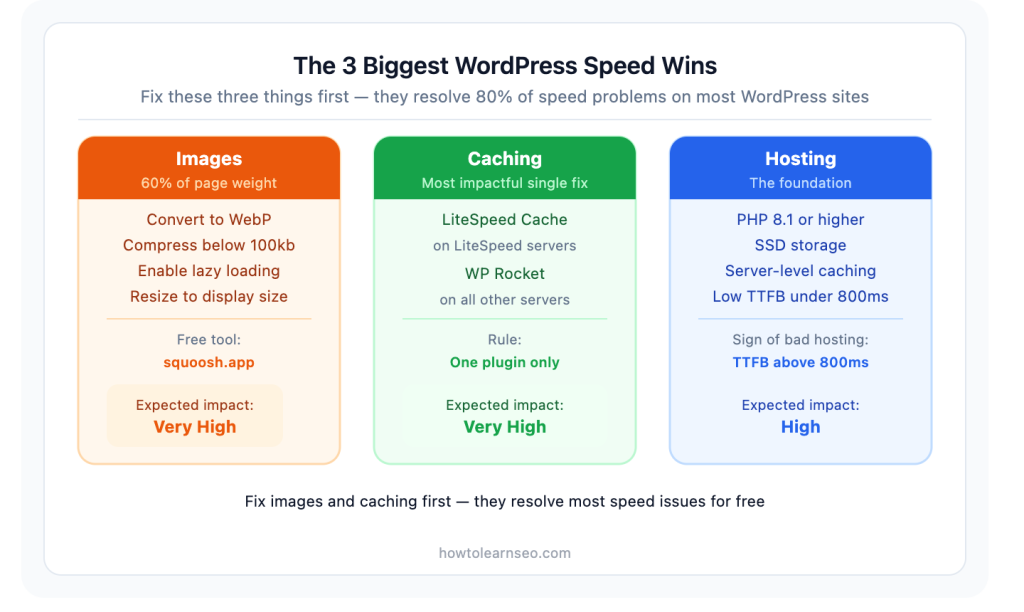
If your PageSpeed Insights shows a TTFB (Time to First Byte) consistently above 800 milliseconds, your hosting is almost certainly the primary bottleneck. No amount of optimisation plugins will fully compensate for an underpowered server.
For WordPress specifically, managed hosting providers like SiteGround, Cloudways, or Kinsta offer significantly better performance than generic shared hosting. The cost difference — typically $15 to $30 per month versus $3 to $5 — is trivial compared to the ranking and revenue impact of a faster site.
Step 3 — Install a Caching Plugin
Caching is the single most impactful WordPress speed optimisation available. Without caching, every visitor to your site triggers WordPress to execute PHP code, query the database, build the HTML page, and send it — every single time. Caching stores a pre-built static version of each page so returning visitors get it instantly without any of that processing.
The right caching plugin depends on your server:
If you’re on a LiteSpeed server — common with Hostinger, Namecheap, and A2 Hosting — use LiteSpeed Cache. It’s completely free and deeply integrated with the server, giving it the highest Core Web Vitals pass rate of any caching plugin.
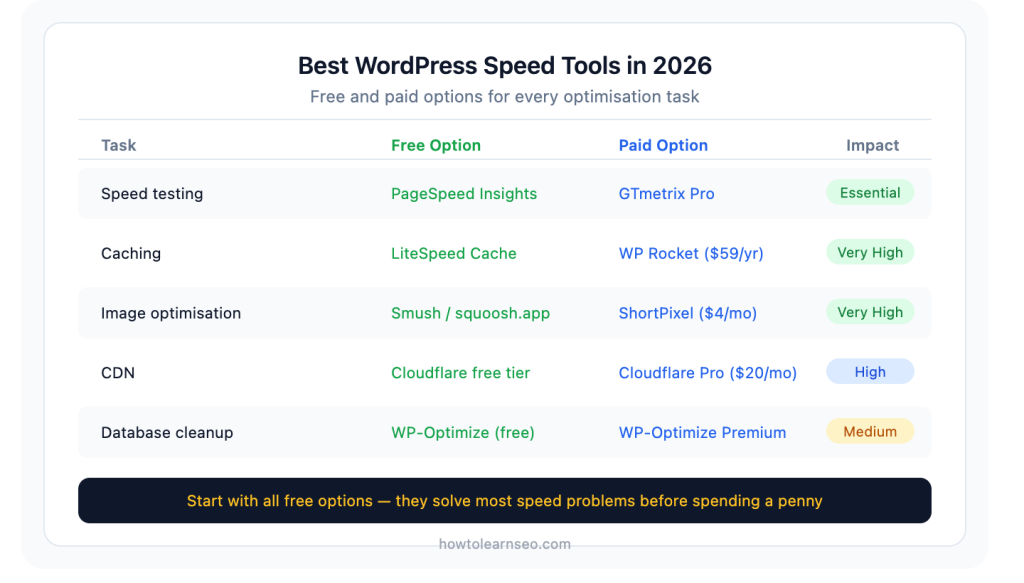
On any other server, WP Rocket is the easiest option that works well out of the box. It handles caching, lazy loading, CSS/JavaScript minification, and database cleanup from one clean interface. It costs $59 per year — or is included in the Rank Math Pro + WP Rocket bundle we discussed earlier.
One critical rule: Use only one caching plugin. Running two simultaneously creates conflicts that can actually slow your site down or break functionality.
Step 4 — Optimise Your Images
Images are responsible for more than 60% of total page weight on the average WordPress site. A single unoptimised photo from a smartphone can be 4 to 6MB. Your visitor’s browser has to download every byte of that before the image appears on screen.
The good news is that image optimisation produces the fastest, most visible speed improvement of any single action you can take — and it requires no technical knowledge.
Four image optimisation rules:
Convert to WebP format. WebP images are 25 to 35% smaller than equivalent JPEGs at the same visual quality. Most modern browsers support WebP fully. Plugins like ShortPixel or Imagify can automatically convert your existing images to WebP with one click.
Compress before uploading. Every image should be compressed before it goes into WordPress. Use free tools like Squoosh (squoosh.app) or TinyPNG (tinypng.com) to reduce file sizes by 60 to 80% with no visible quality loss. Target under 100kb for standard content images, under 200kb for large featured images.
Enable lazy loading. Lazy loading means images only download when a visitor scrolls near them — not all at once when the page first loads. WordPress has had native lazy loading built in since version 5.5. Most caching plugins enable this by default.
Resize images to their display size. Uploading a 4000×3000 pixel image that’s displayed at 800×450 pixels means the browser downloads four times more data than needed. Resize images to their actual display dimensions before uploading.
Step 5 — Minify CSS and JavaScript
Minification removes unnecessary characters from your site’s code files — spaces, line breaks, comments — without changing how the code works. The result is smaller files that load faster.
For most WordPress sites, a good caching plugin handles minification automatically. WP Rocket, LiteSpeed Cache, and W3 Total Cache all include minification settings built in. Enable them, then test your site thoroughly — occasionally minification can break certain plugins or theme features, so always verify your site still works correctly after enabling it.
One important caution: enable minification gradually. Turn on CSS minification first and check your site. Then JavaScript minification. Testing incrementally means if something breaks you know exactly which setting caused it.
Step 6 — Use a Content Delivery Network (CDN)
A CDN is a network of servers distributed around the world. When you use a CDN, your site’s static files — images, CSS, JavaScript — are stored on servers in multiple locations globally. When a visitor loads your page, those files come from the server nearest to them rather than from your origin server thousands of kilometres away.
For a site like howtolearnseo.com with visitors from Singapore, India, the USA, and the UK, a CDN means readers in every country get files delivered from nearby servers rather than all from a single location.
Cloudflare offers a free CDN tier that works well for most content sites. It is straightforward to set up, reduces server load, and often produces noticeable improvements in load times for international visitors. Cloudflare also includes basic security features — DDoS protection and bot filtering — as part of the free plan.
Step 7 — Reduce and Audit Your Plugins
Every active WordPress plugin adds code that executes on every page load. Too many poorly coded plugins is one of the most common causes of slow WordPress sites — and one of the easiest to fix.
The rule is not about how many plugins you have — it is about what they do. Fifty lightweight, well-coded plugins can perform better than five heavy, poorly optimised ones. The plugins most likely to cause speed issues are page builders with heavy JavaScript, sliders and carousels, social sharing plugins that load external scripts, and chat widgets that load third-party code.
Audit your plugins quarterly:
- Deactivate any plugin you haven’t used in three months
- Replace heavy plugins with lighter alternatives that do the same job
- Never run two plugins that do the same thing — two SEO plugins, two caching plugins, or two image optimisers will conflict
A useful test: deactivate all plugins except essentials, run a PageSpeed test, then reactivate them one by one while testing after each. This identifies exactly which plugin is causing the slowdown.
Step 8 — Clean Up Your Database
WordPress databases accumulate unnecessary data over time — post revisions, spam comments, transient options, and orphaned metadata. On an active blog that’s been running for a year, a single post might have 40 or 50 revisions stored. Each one is a row in your database that adds to query time on every page load.
Limit post revisions by adding this line to your wp-config.php file:
define('WP_POST_REVISIONS', 5);This limits WordPress to storing a maximum of five revisions per post going forward.
Clean existing database bloat using the free WP-Optimize plugin. It lets you preview exactly what will be deleted before confirming — always preview before deleting, and run a full backup before any database cleanup.
Schedule database optimisation to run monthly. It takes under a minute and keeps your database lean and fast over time.
Step 9 — Update PHP to the Latest Version
WordPress runs on PHP, and the version your server runs significantly affects performance. PHP 8.2 and 8.3 are substantially faster than PHP 7.4 — which is now end-of-life and no longer receiving security updates.
Check your current PHP version in WordPress under Dashboard → Tools → Site Health → Info → Server. If you’re on PHP 7.4 or below, contact your hosting provider and request an upgrade. Most hosts offer PHP version switching in their control panel with no downtime required.
Running the latest PHP version is one of the easiest free performance improvements available — and it also improves security as a bonus.
Step 10 — Monitor Speed Monthly
Speed optimisation is not a one-time task — it is ongoing maintenance. New plugins, new content, theme updates, and gradual database growth all affect performance over time. A site that scored 85 on PageSpeed six months ago might be scoring 68 today if nothing has been maintained.
Set a monthly reminder to:
- Run PageSpeed Insights on your homepage and two or three key articles
- Check Core Web Vitals in Google Search Console under Experience
- Run a database cleanup with WP-Optimize
- Review active plugins and deactivate anything unused
Monthly checks catch performance degradation early — before it starts affecting rankings and traffic.
Common WordPress Speed Mistakes to Avoid
Using too many page builder elements. Elementor, Divi, and similar page builders add significant JavaScript overhead. Use them sparingly and only where genuinely needed.
Not testing on mobile. Most speed tools default to desktop testing. Always specifically check mobile scores — they’re typically 20 to 30 points lower and are the version Google actually uses for ranking.
Installing overlapping optimisation plugins. Two caching plugins, two image optimisers, or two minification tools running simultaneously will conflict and often make performance worse, not better. One caching plugin, one image optimisation plugin — that’s the rule.
Optimising desktop but ignoring mobile. Many optimisations — image compression, lazy loading, reduced JavaScript — benefit mobile users significantly more than desktop users. Always test mobile specifically after any optimisation.
Expecting instant results. Google’s Core Web Vitals data is based on real Chrome user data collected over 28 days. Even after fixing speed issues, your PageSpeed score reflects actual field data — which takes several weeks to update after improvements are made. Don’t panic if scores don’t jump immediately after optimisation.
Key Takeaways
- Page speed is a confirmed Google ranking factor measured through Core Web Vitals — LCP under 2.5 seconds, INP under 200 milliseconds, CLS under 0.1
- Test with PageSpeed Insights and GTmetrix before making any changes — optimise based on what’s actually slow, not guesswork
- Hosting quality is the most foundational speed factor — shared hosting with slow TTFB limits every other optimisation you make
- A caching plugin is the single most impactful WordPress speed fix — use LiteSpeed Cache on LiteSpeed servers, WP Rocket on everything else
- Images account for over 60% of page weight on most WordPress sites — converting to WebP and compressing below 100kb delivers the fastest visible improvement
- Use one caching plugin only — running two simultaneously causes conflicts that can slow your site down further
- Clean your database monthly and keep PHP updated to the latest version for free, easy performance gains
- Monitor speed monthly — performance degrades gradually and early detection prevents ranking drops
Frequently Asked Questions
Q1: Why is my WordPress website so slow? The most common causes of slow WordPress sites are unoptimised images, no caching plugin installed, cheap shared hosting with limited server resources, too many poorly coded plugins, and outdated PHP versions. Start by running a free PageSpeed Insights test at pagespeed.web.dev — it identifies exactly which issues are affecting your site and prioritises them by impact. In most cases, fixing images and enabling caching resolves 70 to 80% of performance issues without touching anything else.
Q2: What is the best free plugin to speed up WordPress? For sites on LiteSpeed servers — common with Hostinger, Namecheap, and A2 Hosting — LiteSpeed Cache is the best free option and has the highest Core Web Vitals pass rate of any caching plugin. For sites on other servers, W3 Total Cache is the most capable free caching plugin, though its interface is more complex than paid alternatives. Pair either with the free ShortPixel or Smush plugin for image optimisation and you have a solid free performance stack.
Q3: Does page speed affect SEO rankings? Yes — directly. Google confirmed page speed as a ranking factor when it launched Core Web Vitals as an official ranking signal. Pages that score poorly on LCP, INP, or CLS consistently rank below faster competitors with similar content. Beyond rankings, slow pages also increase bounce rates — which sends negative user engagement signals that Google also uses to evaluate page quality.
Q4: How many plugins slow down WordPress? The number of plugins matters less than what they do. Fifty lightweight, well-coded plugins can perform better than five heavy ones. The plugins most likely to cause speed issues are page builders with heavy JavaScript, sliders and carousels, social sharing plugins that load external scripts, and chat widgets. Audit your plugins quarterly and deactivate anything unused. Never run two plugins that perform the same function simultaneously.
Q5: How long does it take to see speed improvements after optimisation? Technical improvements like enabling caching, compressing images, and enabling a CDN often produce immediate changes visible in PageSpeed Insights lab data — sometimes within minutes. However, Google’s Core Web Vitals field data — which is what actually affects rankings — is collected from real Chrome users over 28 days. This means your Search Console Core Web Vitals report may take three to four weeks to reflect improvements you’ve already made. The improvements are real and happening — the data just takes time to update.