To check whether your website is in Common Crawl, search a recent archive with the exact canonical URL, then repeat the query across older crawl indexes when needed. A result proves that the selected archive recorded a capture; it does not prove Google indexing, AI training, an AI citation, or current availability.
How to check your website in Common Crawl
Open the Common Crawl Index Server, select a recent archive, enter one public URL without tracking parameters, and search. A returned record includes the URL, timestamp, HTTP status, content type, digest, and storage location. No result means only that the selected crawl has no match; Common Crawl is a sample, not a complete archive.
Key takeaways
- Search an exact URL first so redirects, protocol variants, and parameters do not blur the result.
- Each monthly crawl has its own index; one query does not search every historical crawl.
- An HTTP 200 capture is stronger evidence of archived page content than a redirect or error record.
- Common Crawl inclusion is not a Google Search or AI visibility metric.
- Use the public index for small checks and avoid automated bulk querying.
What a Common Crawl match actually means
| Observation | Safe conclusion | Do not conclude |
|---|---|---|
| URL appears with status 200 | The selected crawl recorded a successful response | The current page is unchanged or indexed by Google |
| URL appears with a redirect | The crawler received a redirect response | The destination was captured in the same crawl |
| No record appears | The selected index has no matching record | The site was never crawled in any month |
| Several captures appear | The index contains multiple recorded responses | A specific AI system used every capture |
Common Crawl data may be reused, but its index does not identify downstream models, answers, mentions, or citations. Keep archive checks separate from the free AI search visibility workflow.
Prerequisites
- The exact public URL you want to test, preferably copied from its canonical tag.
- The domain variants that may redirect, such as HTTP, HTTPS, www, and non-www.
- A short list of important pages rather than an unrestricted bulk query.
- A spreadsheet or note containing the crawl ID, query, timestamp, status, and result.
WordPress access is unnecessary for the lookup, but it helps when investigating old canonicals, redirects, or robots rules. Before changing access, review the CCBot WordPress setup guide.
Step 1: Choose the correct crawl index
Common Crawl publishes a JSON list of available crawl indexes. The first entry is normally the newest published index and includes an ID, display name, API endpoint, and the capture period. Do not copy an old crawl ID from a tutorial and assume it is current.
- Open the JSON list or the Index Server archive menu.
- Record the selected crawl ID and its date range.
- Start with the newest completed crawl.
- If the page is older, plan to check several earlier crawls individually.
The official CDXJ documentation explains that new index files are published for individual crawls and that there is no single CDXJ index covering every month.
Step 2: Search an exact canonical URL
- Open the Index Server over HTTPS.
- Select the crawl ID you recorded.
- Paste the exact URL, such as
example.com/guides/technical-seo/. - Run the search and save the returned record or note that no record appeared.
- Repeat with a known redirected variant only when you are diagnosing URL history.
Remove fragments and campaign parameters unless those variants are the subject of the audit. An exact query helps you determine which version Common Crawl recorded and whether the response was successful.
Step 3: Broaden the lookup carefully
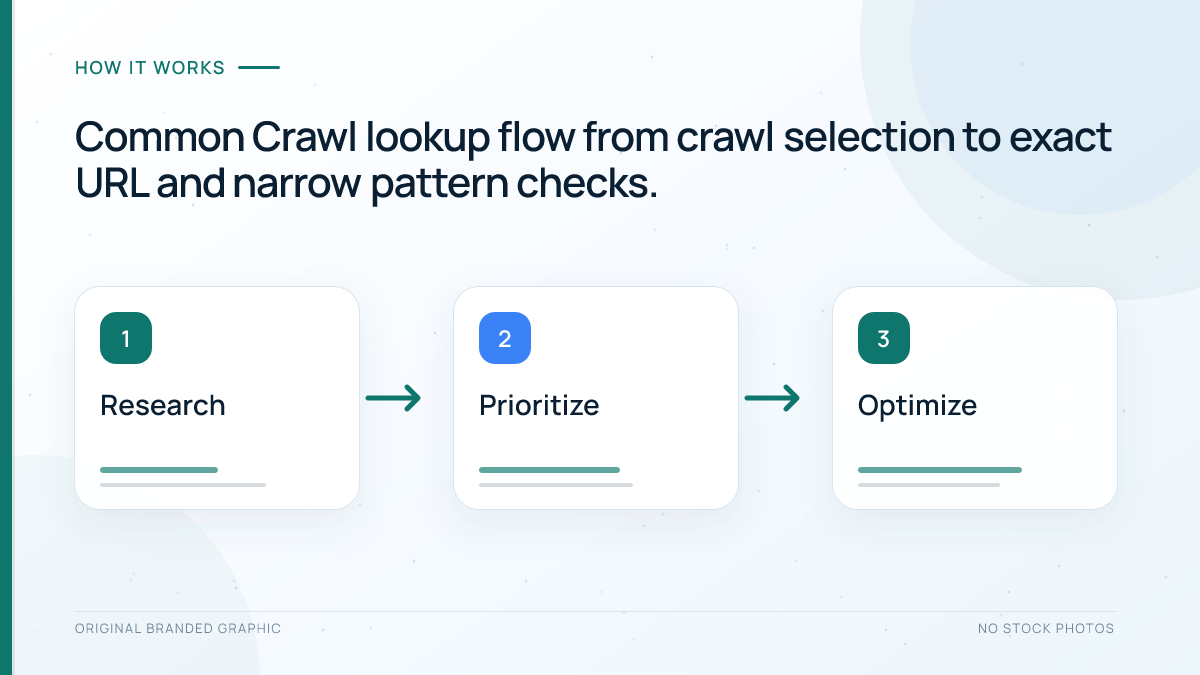
If the exact URL is absent, search a narrow pattern such as example.com/guides/*. Domain-wide patterns can return many records, so reserve them for small sites. The Index Server warns against overloading the service and recommends other formats for bulk analysis.
Check alternate hosts only when the site used them. Historical variants can reveal migrations without proving the current canonical setup is wrong.
Step 4: Read the CDXJ result
Each result is a JSON object describing one capture. These fields answer most SEO audit questions:
| Field | How to use it |
|---|---|
| url | Confirm the captured protocol, host, path, and parameters |
| timestamp | Convert the capture time before comparing it with publication or migration dates |
| status | Separate successful responses from redirects and errors |
| mime and mime-detected | Check whether the response was recognized as HTML, PDF, or another type |
| digest | Compare content checksums within the archive without claiming semantic equality |
| filename, offset, length | Locate the underlying WARC record for advanced verification |
Filename, offset, and length can retrieve the WARC record, but most audits should start with URL, timestamp, status, and content type.
Step 5: Compare the archive result with current evidence
- Open the live URL and confirm its present status, canonical, indexability, and content.
- Compare the capture time with the WordPress publication or modification date.
- Check server logs separately if you need evidence of a recent CCBot request.
- Use Google Search Console for Google indexing, not the Common Crawl index.
- Record AI referrals or citation samples separately from crawler data.
The Google indexing guide explains the indexing distinction. For claimed crawler visits, use the log verification workflow instead of trusting a user agent.
Illustrative worked example
Assume a publisher checks https://example.com/ai-seo-checklist/. The newest crawl has no match, but an older index returns the canonical URL with status 200 and HTML content. A pattern query also reveals an HTTP-to-HTTPS redirect.
The correct conclusion is limited: that older crawl captured the article and observed the redirect. The publisher checks the live page, Search Console, referrals, and citation samples separately.
Troubleshooting
| Problem | What to check |
|---|---|
| No results | Try older crawl IDs, the exact canonical host, and a narrow path pattern |
| HTTP 503 | Stop and reduce request frequency; Common Crawl documents strict rate limiting |
| Only redirects appear | Search the recorded destination URL and inspect the current redirect chain |
| Unexpected parameter URLs | Compare internal links, canonicals, and historic campaign URLs |
| Old content appears | Compare the capture timestamp with later WordPress revisions |
Common Crawl advises using HTTPS, slowing API requests, avoiding parallel queries, and switching to its URL Index for broad filtering. A missing match is often a sampling or timing result, not proof of a technical SEO failure.
Limitations
Common Crawl is not a real-time index and does not archive every page in every crawl. Its records describe historical fetches, so they cannot certify current content, canonical tags, structured data, or robots settings. Historical inclusion also does not reveal who downloaded the data later.
Do not change robots.txt simply to chase an archive match. Decide whether you want CCBot access, verify the live rule, and measure the outcomes relevant to your business. A crawl record can support a data-provenance audit, but it cannot guarantee rankings, traffic, AI citations, or model inclusion.
Frequently Asked Questions
Does a Common Crawl result mean my page is indexed by Google?
No. Common Crawl and Google Search are separate systems. Use Google Search Console and live Google checks when you need evidence about Google indexing.
Why is my URL missing from the newest Common Crawl index?
Common Crawl samples the web, and every crawl has its own coverage window. Check the exact canonical URL and several earlier crawl indexes before drawing a conclusion.
Can I search every Common Crawl archive at once?
Not through one monthly CDXJ index. Each crawl is indexed separately, so small audits should record and query the relevant crawl IDs one by one.
Does a capture prove that an AI model trained on my page?
No. A capture proves only that the selected Common Crawl archive recorded the URL response. It does not identify every later user of the dataset.
Should I automate large numbers of Common Crawl queries?
Not against the public CDX endpoint. Common Crawl asks users to limit request frequency and recommends its URL Index or offline data for broad analysis.
Conclusion
To check your website in Common Crawl reliably, start with an exact canonical URL, record the crawl ID, interpret the status and timestamp, and compare several crawl periods when needed. Treat the finding as historical archive evidence—not as proof of Google indexing or AI visibility. That disciplined interpretation turns a free lookup into a useful part of a wider SEO and GEO audit.