
WordPress comparison tables help readers compare the same facts across several options. A useful table needs clear labels, comparable units, evidence for its values, and a layout people can use on small screens. This tutorial builds a simple table and checks the published result.
Quick Answer
Use the WordPress Table block for ordinary comparisons, enable its header section, and label every column precisely. For explicit row headers and a native table caption, use the Custom HTML example below. Keep the values in real HTML, explain the decision beneath the table, and verify the saved page with keyboard and screen-reader checks. No table format guarantees AI citations.
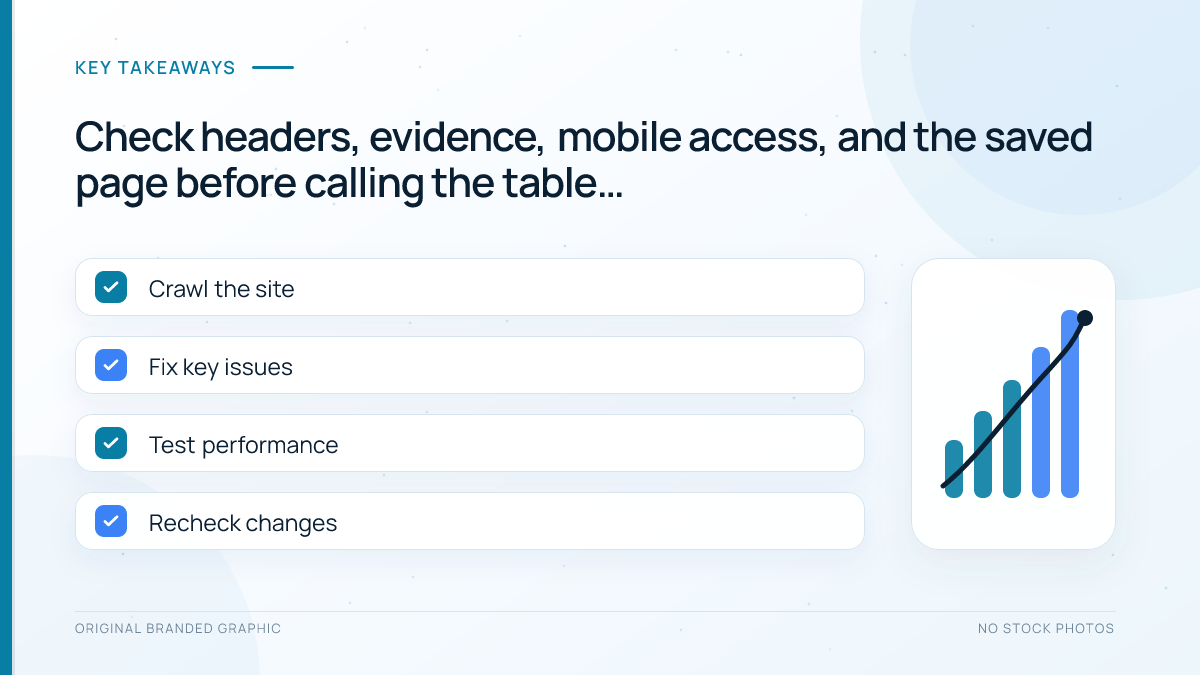
Key Takeaways
- Compare one decision using consistent units and definitions.
- Use real header cells; bold text alone does not define headers.
- Keep sources and qualifications close to the relevant values.
- Test the public page after saving, including its mobile presentation.
Prerequisites and Scope
You need permission to edit a WordPress post, the block editor, a preview environment, and reliable source material for each factual value. Back up the existing content before replacing a table. No paid table plugin is required for this simple example.
Choose a table when readers need to compare repeated attributes. Use paragraphs for explanations that do not share a consistent structure. Use a table only when its rows and columns make the decision easier.
Build WordPress Comparison Tables Step by Step
1. Define the decision and normalize the facts
Write the reader’s question above your working notes. For a pricing comparison, distinguish monthly billing from a monthly equivalent under annual billing. Record currency, taxes, limits, and the date checked when they matter. Use “Not stated” for missing information rather than treating it as zero or inventing a value.
Record a source URL for each claim before designing the table. Our source audit workflow helps distinguish vendor documentation, independent evidence, and unsupported statements. Link the source from the relevant cell or an unambiguous note immediately below the table.
2. Create the table in the block editor
Open the intended post and insert a Table block using the inserter or the /table shortcut. Choose the required rows and columns. Select the block, open Settings, and enable Header section. Enter descriptive column labels instead of styling the first ordinary row to look like a header.
The official Table block documentation explains these controls, including caption and fixed-width options. Preview both equal-width and content-sized cells if labels wrap awkwardly. Your theme affects the final appearance.
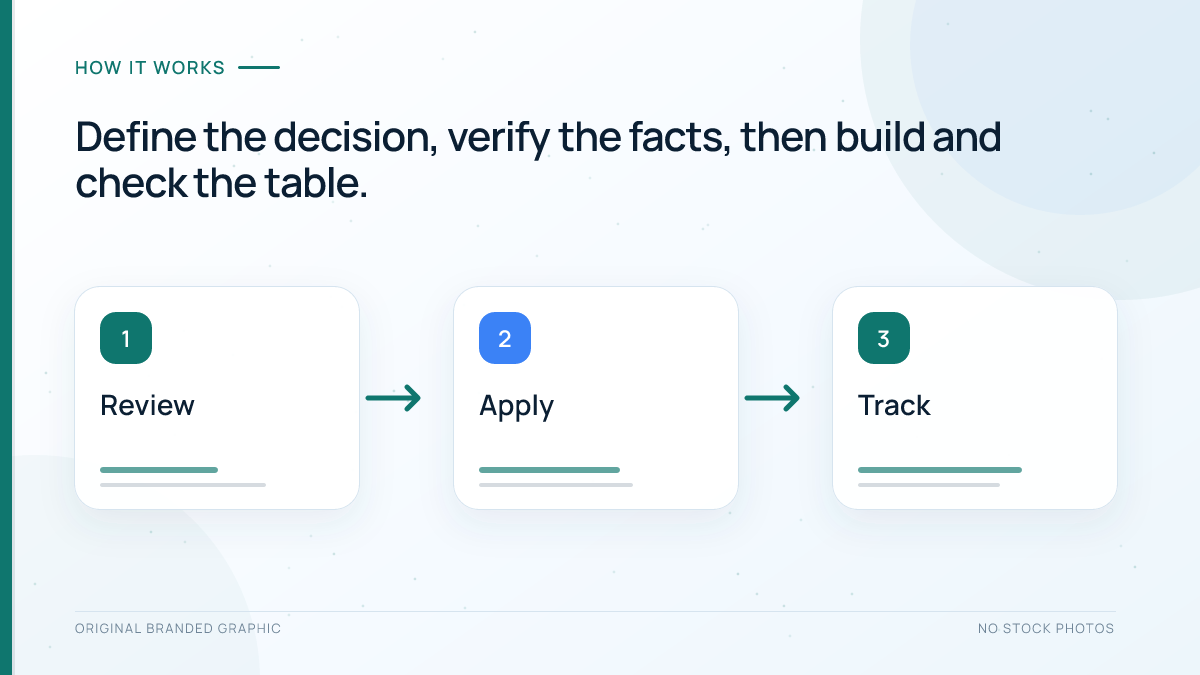
3. Make the header relationships explicit
In HTML, th marks a header cell and td marks a data cell. When the first column names each option, use row headers as well as column headers. Set scope="col" for column labels and scope="row" for option names, following W3C’s two-header guidance. This gives assistive technology explicit relationships.
Add a concise native caption to identify the comparison. W3C explains that a table caption helps users find and identify tables. A WordPress figure caption is not automatically the same HTML relationship. Inspect the saved markup rather than assuming the editor’s visual label establishes it.
Worked Example: Compare Billing Without Hiding the Commitment
The following fictional plans demonstrate formatting and arithmetic. They are not vendor offers, recommendations, or results from product testing. Assume no additional fees or taxes solely for this exercise.
| Plan | Payment due (USD) | Monthly equivalent (USD) |
|---|---|---|
| Flexible | 12 each month | 12 |
| Annual | 96 each year | 8 |
The annual option has the lower monthly equivalent because 96 divided by 12 equals 8. It still requires 96 upfront. A reader needing one month might prefer the flexible commitment. State this tradeoff instead of labeling one row “best” without criteria.
To reproduce the structure, insert a Custom HTML block using /html, paste this markup, and preview it. Replace the illustrative values with verified facts before using it for a real comparison.
<table>
  <caption>Illustrative payment comparison in USD</caption>
  <thead>
    <tr>
      <th scope="col">Plan</th>
      <th scope="col">Payment due</th>
    </tr>
  </thead>
  <tbody>
    <tr>
      <th scope="row">Flexible</th>
      <td>12 each month</td>
    </tr>
    <tr>
      <th scope="row">Annual</th>
      <td>96 each year</td>
    </tr>
  </tbody>
</table>
Verify Accessibility, Mobile Layout, and Crawl Access
- Read the public output: Check every value, source, unit, and qualification after saving. Editor preview alone is insufficient.
- Inspect the structure: In browser developer tools, confirm that the caption, header cells, scope attributes, and data cells survived saving.
- Check assistive navigation: Use a screen reader’s table navigation to verify that cell values have meaningful row and column context. Tab tests links and interactive controls; ordinary cells are not expected to be Tab stops.
- Check narrow screens and zoom: Ensure all columns remain reachable, text stays readable, and any scrolling region works with a keyboard.
W3C’s table design guidance recommends preserving structural relationships in responsive formats and avoiding clipped content. Reduce unnecessary columns before shrinking the font. Use the mobile SEO guide for broader page checks.
In Search Console URL Inspection, review the rendered HTML when checking Google’s access. Search within it for an option name and a distinctive value. If the table depends on scripts, follow the JavaScript SEO guide. A crawler request or a visible rendered table does not prove indexing or AI citation.
Troubleshoot Before Calling the Table Finished
- Headers look correct but lack context: Inspect for styled data cells and replace them with appropriate header cells.
- Values run off the screen: Simplify the comparison or have a developer provide an accessible scrolling wrapper; do not hide overflow.
- Markup changes after saving: Recheck the active block, permissions, and content filters. Ask the site administrator to investigate instead of bypassing restrictions.
- The comparison feels misleading: Recheck billing periods, conditions, unavailable data, and unsupported winner labels.
Search and AI Limitations
Google’s generative AI optimization guidance prioritizes useful original content and foundational SEO. It does not require special schema or a particular writing format. Semantic tables make relationships clearer, but cannot guarantee rankings or citations. A successful implementation means readers can understand and verify the comparison.
Frequently Asked Questions
Can I use a screenshot instead of an HTML table?
A screenshot can supplement a comparison, but readers should also have the full data in accessible text. Image text is harder to resize and navigate as table cells. Keep an HTML version as the main comparison, especially when users need to compare individual values.
Should every table have a source in every cell?
No. A clear note below the table can cover several values from one source. Use separate links when claims come from different documents or dates. Make the mapping obvious so readers can verify a particular figure without guessing which reference supports it.
What if my comparison needs merged headers?
First consider dividing it into simpler comparisons that answer separate questions. Complex tables need more careful header associations and accessibility testing. Do not assume that visually merged cells preserve meaning. Get implementation help when multiple header levels are essential to the reader’s task.
Does the Table block add special AI schema?
A table is HTML content, not a dedicated AI schema type. You do not need to label an ordinary comparison as a dataset or product review solely for AI search. Add supported structured data only when it accurately represents the page and meets its requirements.
How should I maintain a comparison after publication?
Keep a source checklist and recheck changeable values when the underlying offers or facts change. Update the table and its explanatory recommendation together. Record an honest checked date for volatile information, and preserve unknown values until a reliable source supplies the missing detail.
Conclusion
Build WordPress comparison tables around a clear decision, reliable facts, and explicit header relationships. Publish readable HTML, explain the practical tradeoff, and verify the saved page across screen sizes and assistive navigation. Clear comparisons serve readers directly while giving automated systems less ambiguous information to interpret.