A WordPress article can display a beautiful Pinterest preview while quietly sending the wrong headline, an outdated image, or no article details at all. The Pin may still link to the page, so the problem is easy to miss. Before redesigning more Pins, it is worth checking what your website actually tells Pinterest about each article.
This guide explains how to set up Pinterest Rich Pins for WordPress articles by checking the underlying page metadata, choosing one reliable source of article information, and verifying the public result. The aim is not to manufacture a special ranking signal. It is to make your published article’s title, description, and image understandable and consistent wherever Pinterest can read them.
Begin with one published article, not a plugin installation
Choose a public article that has a descriptive headline, a relevant featured image, and a working canonical URL. Record the exact URL, its visible headline, publication date if shown, and the image you want associated with the article. These are your comparison points. If the article itself is unfinished, fix the page before investigating its Pinterest preview.
Open the page in a private window and confirm that it loads without a login, maintenance screen, or redirect loop. Rich Pin information is retrieved from the destination page; a preview cannot reliably represent information that a crawler cannot access. A claimed Pinterest website can help connect your domain with your business account, but claiming and metadata setup are separate jobs.
If you have not checked your domain yet, use the WordPress website-claiming troubleshooting guide. Do not assume that a successful claim automatically creates Article Rich Pins. Likewise, do not confuse Pinterest metadata with Google’s article indexing or Google News eligibility.
Understand the information Pinterest can extract
Article Rich Pins use information associated with the linked article. The exact displayed fields and their presentation can vary with Pinterest’s current product behavior. A sound WordPress setup provides accurate article metadata, including relevant Open Graph properties where supported, rather than relying on a manually typed Pin description as the only source of truth.
Look for properties such as og:title, og:description, og:image, and og:url in the public HTML. Depending on your theme and SEO integration, article-specific properties may also appear. These tags are machine-readable hints about the page. They do not replace a useful visible headline, a working image, or an accessible destination.
An ordinary Pin title and description can still be written for search relevance. Rich Pin metadata and Pin copy have different responsibilities: the page metadata describes the destination, while the Pin creative introduces a specific reader benefit. For writing the latter, see the Pinterest titles and descriptions tutorial. Avoid making claims in the Pin that the linked article cannot support.
Audit the HTML your WordPress site currently delivers
Open the article URL while logged out, select View Page Source, and search for og:title and og:image. Record the values exactly. Then search for duplicates. Two SEO plugins, or a theme and a social-sharing plugin, can sometimes output competing metadata. Do not install another plugin merely because a preview looks wrong; first determine what is already present.
Compare the og:url value with the article’s intended canonical address. Check whether the image URL opens directly in a private window and returns an actual image rather than a blocked response, login page, or placeholder. If the site uses an image CDN, confirm that the public image is accessible without cookies. A filename visible in WordPress’s media library does not prove the final URL works.
A useful audit note contains four columns: field, observed value, desired value, and action. For example, og:title might show an old headline while the visible article has a new one. The action is to inspect the SEO plugin’s social-title setting and clear any relevant cache, not to rewrite the whole article. This makes the next change measurable.
Configure one authoritative metadata source
In WordPress, identify which SEO plugin or theme component generates Open Graph metadata. Common SEO plugins expose social preview settings, but the location and availability of controls vary by product and version. Consult your active plugin’s documentation rather than assuming a particular menu label exists. Enable its social metadata output if the feature is available and currently disabled.
For the selected article, set a clear social title that accurately represents the page. A sensible default is the real article title, shortened only when necessary for readability. Use a concise description that explains the page’s specific practical value. Select a relevant featured or social image with legible visual content and without a misleading promise. Do not use an unrelated viral image just to attract clicks.
If two components output the same Open Graph fields, choose one to own them. Disable only the duplicate output after confirming the active source, and preserve a record of the previous setting. Avoid switching off unrelated SEO features. Site-wide changes can affect previews on other platforms, so test at least two different articles before treating the configuration as complete.
Do not paste multiple conflicting meta tags manually into each article. Manual tags can become stale after title changes, and theme updates may overwrite custom code. A maintained metadata source is usually easier to audit, provided you verify its actual public output rather than trusting a dashboard preview.
Worked example: repair a stale article image
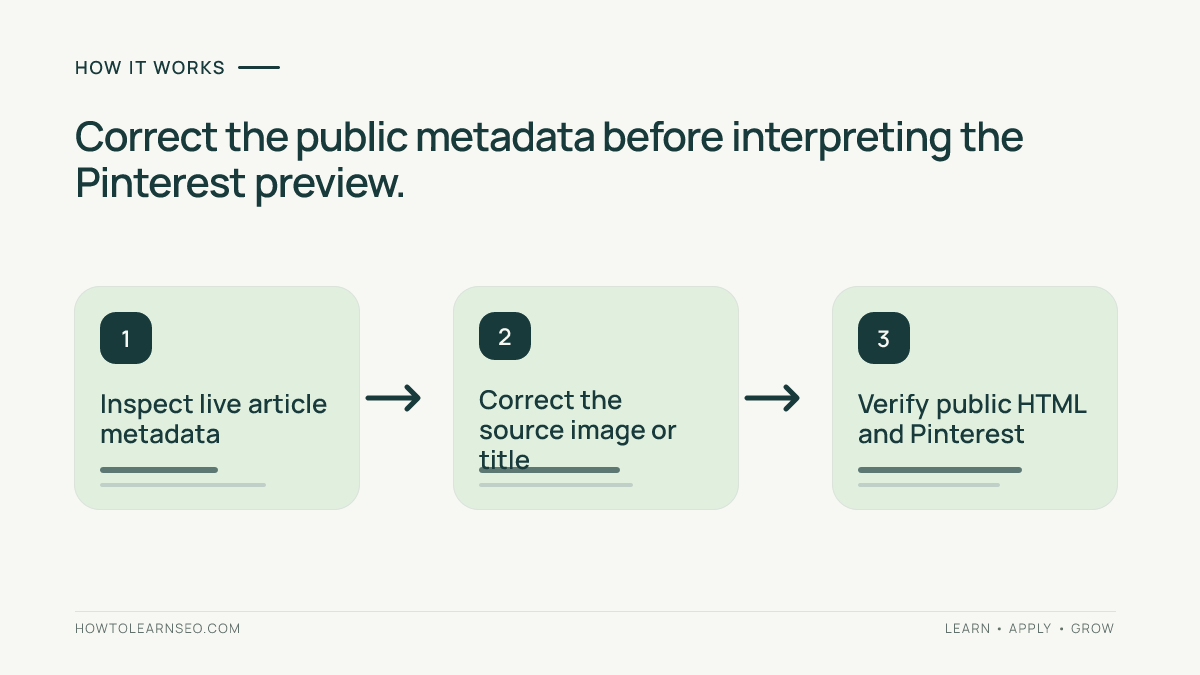
Imagine a fictional WordPress guide titled “Pinterest Board Planning for Beginners.” The article’s visible featured image has been updated, but public page source still contains an og:image URL pointing to an older banner. This is an illustrative case, not a claim about a tested website. The inputs are the article URL, the desired image URL, the existing Open Graph fields, and the site’s cache layers.
First, open the old og:image URL and confirm that it is indeed the obsolete banner. Next, inspect the article’s social image field in the active SEO plugin. If the old image is explicitly selected, replace it with the correct image and save. If the plugin shows the correct image already, check whether WordPress, the host, or the CDN is serving cached HTML.
After a targeted cache purge, reopen the page source in a logged-out window. The expected local result is that og:image now contains the desired public image URL. Confirm that the image loads. If the source remains unchanged, investigate duplicate metadata output or a different WordPress installation before attempting more random fixes.
This confirms the website’s HTML, not Pinterest’s refresh timing. Pinterest may retain an older representation for some time. Use any currently supported official validation or debugging guidance, and distinguish a verified page-source correction from an unverified Pinterest display update. If the new image still does not appear, document the URL, public metadata, and date rather than promising an instant refresh.
Check the difference between metadata and a Pin preview
Review Pinterest’s official Rich Pins guidance for the current eligibility, supported types, and setup or validation steps. Product interfaces and validator availability may change. Follow the live official instructions rather than an outdated tutorial that assumes a particular approval button or fixed review time.
If Pinterest provides a validation method, submit the exact public article URL, not a WordPress editing URL or shortened tracking link. Compare any returned data with your page-source audit. A successful technical validation should not be presented as proof that Pinterest will display every field identically on every device or Pin surface.
Keep the linked article’s URL stable when possible. If you change slugs, implement an appropriate redirect and update important Pins where feasible. For a broader check of the reader experience, use the Pin-to-landing-page relevance audit. The destination should fulfill the Pin’s promise even when the metadata is perfectly formatted.
Troubleshoot by the evidence you can see
The page source contains no social metadata
Confirm that your active SEO plugin or theme supports Open Graph output and that the feature is enabled. Check whether another integration suppresses it. Do not add several plugins at once. Make one configuration change, reload the public source, and record whether the expected tags appeared.
The correct tags exist but Pinterest shows old details
Check the image URL and the page’s final redirect destination. Verify the current public HTML in a logged-out browser. Pinterest may use cached information, so a corrected source does not guarantee immediate display changes. Refer to current official support options before assuming a new account or a new Pin is required.
The article image is missing or cropped awkwardly
Confirm that the source image is publicly accessible and has appropriate dimensions for its intended use. Avoid placing essential text at the extreme edges. Pinterest’s own creative guidance can inform the separate vertical Pin design; an article’s Open Graph image and a custom vertical Pin do not need to be identical.
Different articles show the same title or image
Inspect whether a site-wide default is overriding post-level settings. Test the page source of two individual article URLs, not just the homepage. If both expose identical values, investigate the metadata template or cache configuration. Fix the generating rule rather than editing every Pin manually.
Make the metadata part of your editorial checklist
Before publishing a new article, confirm its visible headline, social title, description, featured image, canonical destination, and public access. Then verify the actual source on the published URL. This check belongs after publication because the live page can differ from the editor preview. A quick source audit is more reliable than trusting a green plugin indicator.
For an existing library, prioritize articles that already receive Pinterest attention or have high-value search intent. Avoid rewriting hundreds of posts simply to change their social metadata. Select a manageable sample, document actual problems, and fix the shared template if several pages exhibit the same defect. Keep your editorial work focused on the reader’s destination experience.
Use Pin templates aligned with website content to create two or three honest creative angles from one article. One Pin might emphasize the diagnostic checklist, another the setup workflow, and a third the common error. They should link to the same relevant page only when that page actually satisfies each promise.
After publishing Pins, measure real visits rather than treating metadata correctness as a traffic forecast. The GA4 and UTM tracking guide explains how to distinguish campaign links. Pinterest outbound clicks and GA4 sessions are not identical metrics; consent, loading failures, and attribution can affect the comparison.
A compact verification record you can reuse
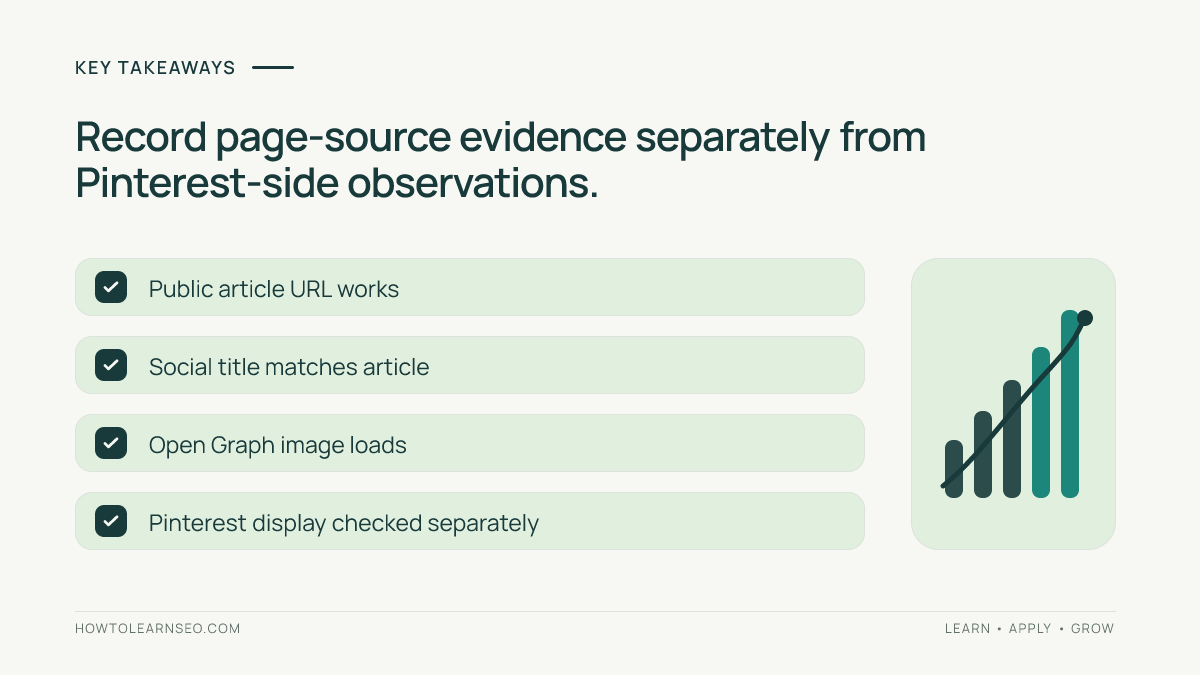
For each audited article, save its URL, date checked, social-title value, social-description value, image URL, final destination, and whether the HTML was publicly accessible. Add a separate column for the Pinterest-side observation. This prevents the common mistake of labeling a page fixed because one system changed while the other still shows an old preview.
For example, your record could read: “Article A; public og:image corrected; image returns successfully; Pinterest display not yet confirmed.” That is a precise result. If a later check shows the updated preview, add the observation and date. Do not invent a refresh interval or a performance gain. Metadata is one input into a larger Pin-to-website journey.
Official references worth keeping beside your checklist include Pinterest’s website-claiming guidance and the Open Graph protocol. These explain different pieces of the setup: account-domain association and page metadata. Neither guarantees referral traffic, indexing, or search placement.
Frequently Asked Questions
Do I need a paid WordPress SEO plugin for Pinterest Rich Pins?
Not necessarily. What matters is valid, publicly accessible metadata and the current Pinterest requirements. Check the features available in your existing setup before buying anything.
Are Rich Pins the same as regular Pinterest Pins?
No. Rich Pins can use information from the linked page, while regular Pin copy and creative are managed separately. Their appearance and available fields can vary.
Does claiming my domain automatically enable Article Rich Pins?
No. Website claiming and article metadata are different tasks. Confirm both the account association and the public metadata rather than assuming one completes the other.
Why does Pinterest show an older image after I update WordPress?
The public HTML may still be cached, or Pinterest may retain an older preview. Verify the current og:image value and public image first, then follow official Pinterest guidance.
Should I add Open Graph tags manually to every post?
Usually not. A reliable theme or SEO integration can manage consistent output, provided it is configured correctly and does not conflict with another metadata source.
Will Rich Pins guarantee more Pinterest website traffic?
No. Accurate metadata helps represent an article, but traffic depends on audience relevance, creative quality, distribution, destination usefulness, and other factors.
Conclusion
Start with one published article and compare its visible content with the metadata delivered in public HTML. Fix only what the evidence shows is wrong, confirm the updated source, and then check Pinterest’s current validation guidance. Once the representation is accurate, put your attention back on useful Pins and landing pages that earn qualified visits.