
Search Console AI configuration turns a plain-language reporting request into proposed Performance report settings. It can save setup work, but a fluent request is not proof that the resulting view answers your question. Check the property, inherited filters, dates, comparison and selected metrics before interpreting the chart.
This guide teaches a reviewable setup process. The worked example is illustrative; it does not claim that this site’s account was tested or that any generated configuration was observed.
Quick Answer
Write the report specification first. Open AI-powered configuration in the Search results Performance report when available, submit one precise request and inspect the proposed settings before confirming. Then compare the applied view with your specification and save the verified scope alongside any export or conclusion.
Key Takeaways
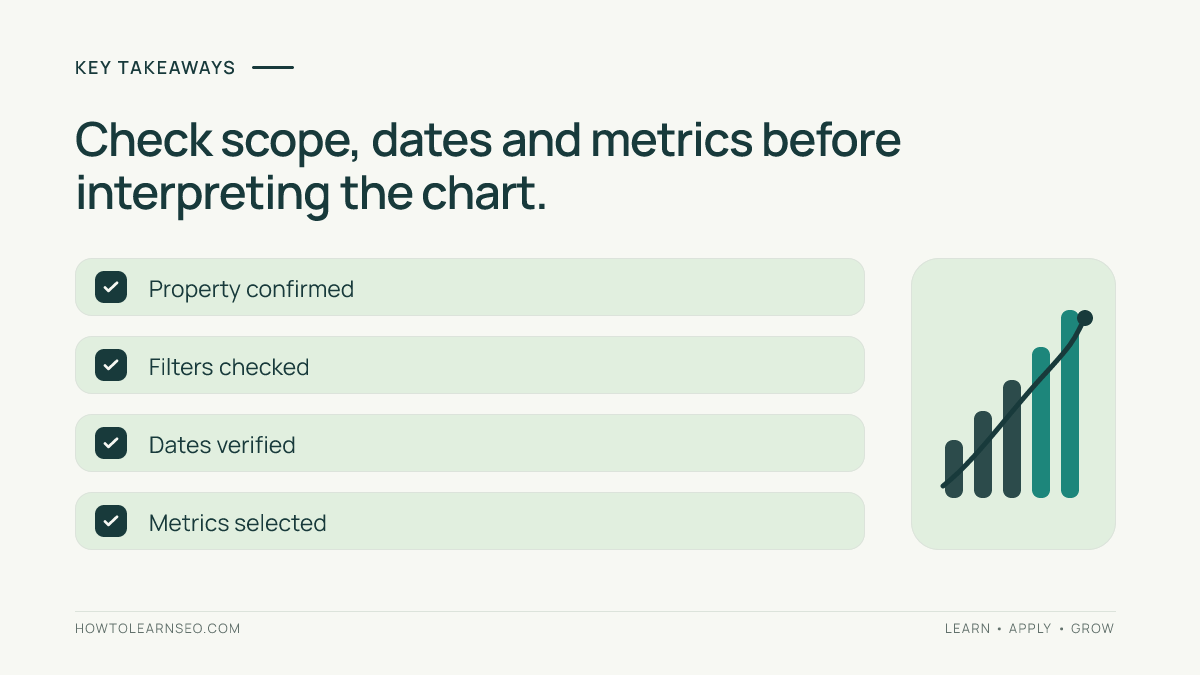
- The feature configures a data view; it does not explain why performance changed.
- Existing filters can influence what a new request produces.
- Specify dates and dimensions rather than asking for vague “traffic.”
- Separate an accepted configuration from a validated business conclusion.
What the Feature Can Configure
Google’s feature explanation describes natural-language setup for filters, comparisons and metric selection. It supports the Search results Performance report rather than the separate Discover and News reports. Supported settings include query, page, country, device, search appearance and date filters.
Clicks, impressions, average CTR and average position answer different questions. For example, selecting clicks does not produce sessions or revenue. Google’s Performance overview explains these metrics and the table dimensions. Use the Search Console foundation guide if you need help choosing the correct property.
Prepare a Report Specification
You need access to the intended property’s Performance data and a concrete analysis question. If the AI control is absent or unavailable, configure the same supported settings manually. The verification method still applies; missing access to this convenience feature does not establish missing performance data.
Before entering a prompt, write down:
- The exact property and Search results report.
- The reporting dates and any comparison dates.
- The search type, country and device.
- The page or query rule, including whether it means exact or containing.
- The metrics and table dimension needed.
- Which existing filters should remain or be removed.
Choose complete, settled periods for comparisons and check the report’s freshness indicators. Avoid mixing a partial recent period with a complete baseline. When using relative dates, record the resolved calendar dates so another reviewer can reproduce the view later.
Use Search Console AI Configuration Step by Step
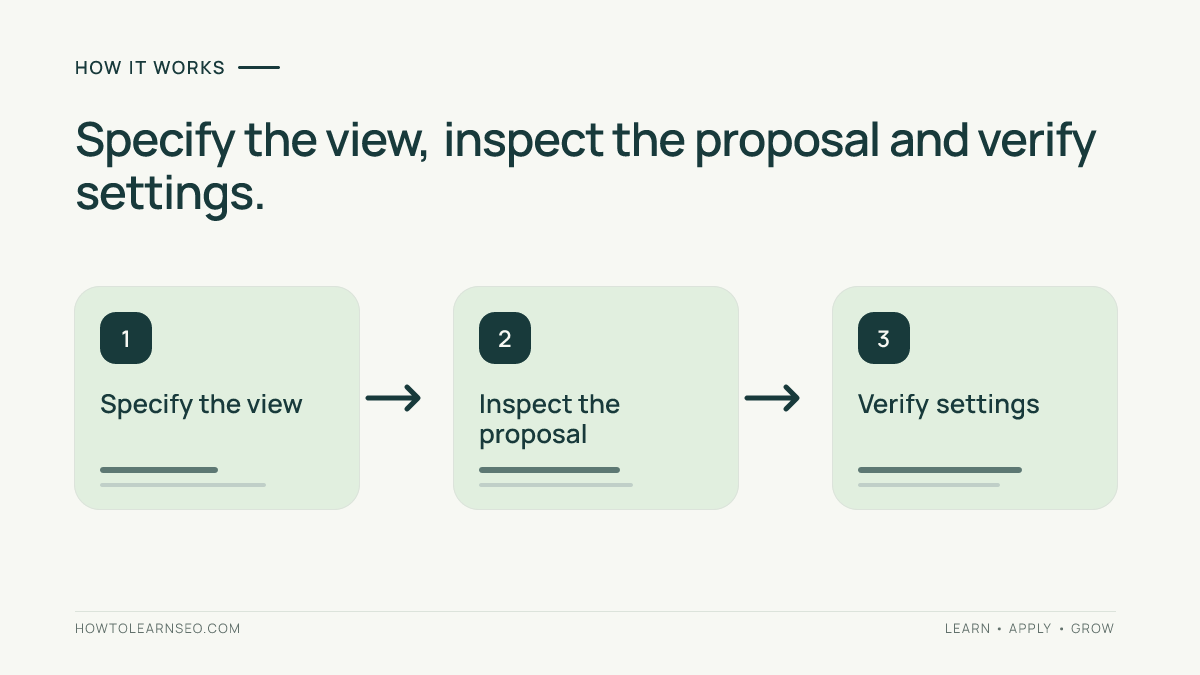
1. Inspect the starting state
Read every active filter before making the request. Remove unrelated restrictions manually or document why they belong. A report already limited to one country cannot answer an all-country question without correcting that scope.
2. Submit a precise request
Open the filter icon in the Performance report header to access the tool’s side panel, then enter your request. Google’s configuration instructions describe reviewing and confirming its suggested settings. They also note that existing filters are retained during new customizations.
Keep the request focused on setup. “Show clicks” identifies a metric; “find my best customers” asks for information this report cannot establish. Include exact dates when a named campaign or event would otherwise require an inferred timeline.
3. Review, confirm and verify
Compare the proposal with your written specification, then confirm only the matching configuration. After applying it, inspect the active filters and selected metrics again. Resolve any mismatch before reading a trend as growth or decline.
Worked Example: Check Every Setting
Imagine a fictional education site’s analyst wants mobile Web Search clicks and impressions from the United Kingdom for guide URLs. The following is a synthetic setup exercise, not a screenshot, account finding or generated tool response.
Show clicks and impressions for pages whose URLs contain /guides/, from the United Kingdom on mobile devices. Compare September 1 through September 28, 2026 with August 4 through August 31, 2026. Use Web search and the Pages table.
Both illustrative windows contain 28 days. Start from a report with unrelated query and search-appearance restrictions removed. Judge any proposed configuration against this expected specification:
| Setting | Expected state | Mismatch to catch |
|---|---|---|
| Primary period | September 1–28, 2026 | Entire September selected instead |
| Comparison period | August 4–31, 2026 | Entire August selected instead |
| Audience scope | United Kingdom; mobile | Old country filter or all devices |
| Content rule | Page URL contains /guides/ | Query text filtered instead of URLs |
| Display | Clicks, impressions; Pages table; Web search | CTR alone or a different search type |
Inspect actual returned URLs after application. A containing rule may include more addresses than the analyst intended. If the relevant section uses several URL patterns, define and validate that scope separately using the regex validation workflow. Do not expand the analysis silently to make a chart look fuller.
Handle Unsupported Requests Separately
Google documents sorting, exports and direct table-value filtering as outside this configuration tool’s actions. Configure the view first, then use the report’s normal controls for supported follow-up tasks. Asking the assistant to export a file does not prove that an export exists.
Break a compound request into an analysis sequence. For example, configure a page segment, verify it, then manually inspect the relevant rows. A request to “show losing pages and fix their titles” combines reporting, interpretation and website editing; each needs its own evidence and authorization.
Save the Verified Scope
Keep a short record with the original request, exact applied settings, check date and any unresolved limitation. If you export data, associate the file with that record. Recreate the view from the recorded settings to check reproducibility before sharing a significant conclusion.
Use one setup record per coherent comparison. Changing country halfway through a report produces a different question, even if the same chart remains visible. The AI SEO report audit helps check calculations and claims after the configuration has been verified.
Troubleshooting and Interpretation Limits
- No rows appear: inspect inherited filters, dates and property before concluding there was no demand.
- The wrong dimension appears: distinguish a page URL rule from query wording and correct the setup.
- A comparison looks implausible: check resolved dates, period lengths and changes in scope.
- The tool is unavailable: use manual filters and preserve the same specification.
AI-powered configuration is different from Google’s Generative AI performance report. An AI-built query filter does not measure comprehensive citations, assistant referrals or crawler activity. Keep those observations separate and avoid treating report setup as an optimization result.
Frequently Asked Questions
Does confirming a suggestion change my website?
It applies settings to the report view. It does not rewrite titles, change robots rules or publish content. Treat any later recommendation as a separate decision requiring page evidence and approval. A correctly configured chart can support investigation, but it cannot authorize a website change by itself.
Can I ask for performance after a campaign?
Translate the campaign into exact calendar dates before requesting the comparison. Record those dates and choose a suitable baseline. A before-and-after chart does not prove the campaign caused the difference; other marketing, seasonality, ranking changes and measurement limits may also affect the observed outcome.
Why did an old device filter remain active?
The tool considers existing report settings when adding customizations. Inspect the starting state and the final applied filters rather than assuming each prompt resets the report. If your new question needs a different device scope, correct that explicitly and verify the resulting view before interpreting its totals.
Can the tool identify which visits came from ChatGPT?
This configuration feature works with Search Console’s Search results data. It is not a source of ChatGPT-referred sessions. Use appropriate first-party analytics for identifiable assistant visits, and distinguish those visits from mentions, citations and crawler requests. Do not infer those measurements from a question-shaped search query.
Should I keep retrying a vague prompt until the chart looks right?
No. Return to the report specification and identify the mismatch. Narrow the request or set the unsupported part manually. Repeated prompting until a preferred pattern appears can introduce selection bias. Preserve the configuration you actually used, including limitations, so another reviewer can assess the same evidence.
Conclusion
Reliable Search Console AI configuration starts with a defined question and ends with checked report settings. Review inherited scope, explicit dates, dimensions and metrics, then preserve the verified view. Interpret the data only after the setup answers the question you intended to ask.