Google Search Console is one of the most useful tools available to anyone who owns or manages a website. It shows how Google discovers, indexes, and displays your pages, which search queries lead people to your site, and which technical problems may be limiting your visibility.
The tool is free, but it can feel confusing at first because it combines performance data, indexing information, technical diagnostics, and alerts in one place. This guide explains what Google Search Console does, how to set it up correctly, which reports matter most, and how to turn its data into practical SEO decisions.
Quick Answer: What Is Google Search Console?
Google Search Console is a free Google service that helps website owners monitor and improve their presence in Google Search. It reports search clicks, impressions, click-through rate, average position, indexing status, crawl information, structured-data issues, links, security problems, and manual actions.
Search Console does not automatically improve rankings or change your website. It provides evidence about what Google sees and how your site performs. You use that evidence to decide what to fix or improve on the website itself.
Key Takeaways
- Google Search Console shows what happens between your website and Google Search.
- The Performance report reveals the queries and pages producing impressions and clicks.
- The Page indexing and URL Inspection reports help diagnose crawling, indexing, canonical, and page-fetch issues.
- A submitted sitemap helps Google discover important URLs, but it does not guarantee indexing.
- Search Console and Google Analytics answer different questions and work best when used together.
- Good analysis focuses on trends, page-query relationships, and business value rather than a single average-position number.
What Does Google Search Console Actually Do?
Google Search Console gives you a view of your website from Google’s side. If you already understand how search engines crawl, index, and rank pages, think of Search Console as the diagnostic panel for those stages.
Its main jobs are to help you:
- Measure how often your pages appear in Google Search and how often searchers click them.
- Discover which queries, pages, countries, devices, and search appearances drive visibility.
- Check whether Google has indexed an important URL.
- Investigate why a page is not indexed or cannot be fetched.
- Submit and monitor XML sitemaps.
- Review page-experience and structured-data reports when they are available for your site.
- See samples of internal and external links known to Google.
- Receive alerts about security issues, manual actions, and certain technical problems.
Search Console is an essential part of technical SEO, but it is also valuable for content strategy. Its query and page data can reveal what readers want, where your content is already gaining traction, and which pages deserve improvement.
Google Search Console vs Google Analytics
Search Console and Google Analytics are complementary, not interchangeable. Search Console mainly explains how your site performs before and during a click from Google Search. Google Analytics mainly explains what visitors do after they arrive on your website.
| Question | Google Search Console | Google Analytics |
|---|---|---|
| How did people find the site? | Google Search queries, search types, countries, devices, and search appearances | Traffic channels such as organic search, paid search, referrals, email, social, and direct |
| What does it measure? | Impressions, clicks, click-through rate, average position, indexing, and search health | Users, sessions, engagement, events, conversions, and on-site behavior |
| Where does the data come from? | Google Search systems | Measurement code and events on your site or app |
| Best use | Finding search visibility, keyword, indexing, and technical opportunities | Understanding visitor quality, journeys, and business outcomes |
Do not expect Search Console clicks to match Analytics sessions exactly. A click and a session are different measurements, and the tools handle attribution, canonical URLs, time zones, tracking, and privacy differently. Compare overall patterns rather than trying to force the totals to match.
How to Set Up Google Search Console
Setting up Search Console means adding a property and proving that you control it. A property is the website or website segment whose data you want to view.
Step 1: Choose the Right Property Type
Search Console offers two main website property types:
| Property type | What it includes | Verification | Best fit |
|---|---|---|---|
| Domain property | All protocols and subdomains under the domain | DNS record | Most site owners who want one complete view |
| URL-prefix property | Only URLs beginning with the exact protocol, host, and optional path entered | Several available methods | A specific protocol, subdomain, or folder that needs separate reporting |
For example, a Domain property for example.com can include the HTTP and HTTPS versions plus subdomains such as shop.example.com. A URL-prefix property for https://www.example.com/blog/ covers only URLs beginning with that exact prefix.
A Domain property is usually the cleanest primary setup because it reduces the chance of overlooking a protocol or subdomain. You can still add URL-prefix properties later when a team needs a narrower view.
Step 2: Verify Ownership
Domain properties require DNS verification. Google gives you a record to add through your domain provider. DNS changes may need time to propagate, so a failed first attempt does not always mean the record is wrong.
URL-prefix properties support additional verification methods, such as an HTML file, an HTML tag, Google Analytics, Google Tag Manager, or DNS. Keep the verification method in place after setup. Removing the verification file, tag, record, or required permission can cause you to lose verified-owner access.
Step 3: Check the Preferred Version of the Site
Open a few important URLs and confirm that the property covers the exact live versions. Pay attention to HTTPS, www versus non-www, subdomains, and language or store folders. A common beginner mistake is reviewing a narrow URL-prefix property while assuming it contains the whole site.
Step 4: Submit the XML Sitemap
Open the Sitemaps report and submit the sitemap URL supplied by your content management system or SEO plugin. Submission helps Google find and monitor the URLs listed in the file. It is a discovery signal, not an instruction that forces Google to crawl or index every page.
Step 5: Assign Safe User Permissions
Give each person only the access needed for their work. Owners have full control, full users can view all data and take some actions, and restricted users have basic viewing access. Avoid sharing one Google login among team members; add individual accounts so access can be reviewed or removed cleanly.
The Most Important Google Search Console Reports
Overview
The Overview page summarizes recent performance, indexing information, recommendations, and enhancements available for the property. Use it as a starting point, not as the final diagnosis. When a chart changes or an issue appears, open the full report and examine the affected pages.
Performance
The Performance report is where most content and keyword analysis begins. It shows four core metrics:
- Clicks: how many times searchers clicked a result leading to your site.
- Impressions: how often a link to your site was shown in eligible Google Search results.
- CTR: clicks divided by impressions.
- Average position: the average position of your property’s topmost result for the selected data.
You can group or filter the data by query, page, country, device, date, and search appearance. Search type options may include web, image, video, and news, depending on the report and your data.
Average position needs careful interpretation. It combines many searches, locations, devices, and result layouts. Treat it as a directional metric, not a precise daily rank-tracking number.
URL Inspection
The URL Inspection tool answers a page-specific question: What does Google know about this exact URL? It can show whether the page is indexed, when it was last crawled, whether crawling and indexing are allowed, which canonical Google selected, and whether page fetching succeeded.
The indexed view reflects Google’s stored information from its last processing of the URL. A live test checks the current accessible version. That distinction matters after a recent fix: the live page may be correct even though the indexed data still reflects an older crawl.
You can request indexing for an eligible individual URL, but the request is not a ranking boost or an indexing guarantee. Fix the underlying problem first. For many new or updated pages, maintain accurate internal links and an updated sitemap instead of repeatedly requesting each URL.
Page Indexing
The Page indexing report groups URLs Google knows about into indexed and non-indexed categories and explains why some pages were excluded. Common reasons include redirects, duplicate pages, alternate canonical pages, noindex directives, not-found responses, server errors, and pages that Google discovered but has not indexed.
Not every non-indexed URL is an SEO problem. A redirected URL, an intentional duplicate, or a thank-you page with noindex may be working exactly as intended. Investigate whether the affected URL should be indexed before trying to change its status.
If an important page is excluded, inspect it and check the relevant controls. The site’s robots.txt file controls crawling, while a meta robots directive can control indexing. A canonical tag helps signal which version of similar pages should be treated as primary.
Sitemaps
The Sitemaps report shows Google’s processing of a submitted file. A successful submission does not establish that the file contains every intended article or that its entries are indexed. Compare the public XML entries with the eligible published inventory: in a hypothetical audit with 12 intended pages and nine entries, identify the three omissions before resubmitting the same file.
Inspect included URLs and missing URLs separately. Sitemap coverage, crawl access and confirmed indexing answer different questions. Record the actual file contents and check time so a cached or incomplete file is not mistaken for a completed discovery repair.
Include canonical, indexable URLs that return successful responses. Remove obsolete, redirected, duplicate, or intentionally non-indexable URLs from the sitemap. When the sitemap contains only pages you genuinely want indexed, its data becomes much more useful for diagnosis.
Core Web Vitals, HTTPS, and Enhancement Reports
Search Console may show reports for Core Web Vitals, HTTPS, and search enhancements detected on your site. Availability depends on the property’s data and implemented features.
Rich-result reports identify valid and invalid structured-data items Google found for supported result types. They do not list every piece of markup on every page. Use them alongside URL Inspection and validate that the markup accurately represents visible content. If structured data is new to you, start with this beginner’s guide to schema markup.
Links
The Links report provides information about pages receiving internal and external links, along with linking sites and link text. It is useful for spotting isolated important pages, heavily linked sections, and broad link patterns, but it should not be treated as a complete backlink database.
Manual Actions and Security Issues
The Manual actions report tells you whether a human reviewer at Google has applied an action because part or all of the site violates spam policies. The Security issues report can flag detected hacking, malware, harmful downloads, or deceptive pages.
These reports usually require urgent attention. Read the exact issue, fix all affected areas, document the work, and use the provided review process when appropriate. A normal ranking decline does not automatically mean a manual action; if the report says none were detected, investigate other causes.
How to Use the Performance Report for SEO
Exporting thousands of rows is not a strategy. Start with a specific question, apply the right filters, and then look for a pattern you can act on.
Find High-Impression Pages With Weak Click-Through Rate
Filter by a page, then review its queries. If the page earns meaningful impressions for relevant searches but relatively few clicks, compare the title and snippet shown in Google with the searcher’s likely need. A clearer title or more useful description may help, but only if the page truly satisfies the query.
CTR varies by position, query type, brand familiarity, device, and the features displayed on the results page. Do not label a page as weak merely because its CTR is below a site-wide average.
Identify Pages Within Reach of More Visibility
Look for relevant query-page combinations that already receive impressions and have gradually improved. Review whether the page answers the query directly, covers the necessary subtopics, uses a clear heading structure, and has suitable internal links. Strengthen the page only when the change improves the reader’s experience.
A page ranking for an unexpected query is not always an opportunity. Sometimes it means the query is only loosely related. Confirm intent before expanding content.
Diagnose a Traffic Decline
Compare equivalent date ranges and separate the change by page, query, country, device, and search type. This helps distinguish a site-wide technical problem from seasonality, demand changes, a single declining page, or a shift limited to one market.
Check impressions before assuming rankings collapsed. Falling clicks with stable impressions may point to CTR or search-result changes. Falling impressions across many important pages may justify a deeper technical, content, or demand analysis.
Map Queries to the Correct Pages
Select an important query and inspect which pages appear for it. If several pages alternate without a clear primary page, compare their intent and scope. You may need to differentiate them, consolidate overlapping content, or improve internal linking. Do not merge pages solely because both received an impression for the same broad phrase.
A Practical Indexing Troubleshooting Workflow
- Confirm the URL should be indexed. Utility pages, duplicates, filtered URLs, and expired content may be intentionally excluded.
- Inspect the exact canonical URL. Small differences in protocol, hostname, path, or trailing slash can lead you to test the wrong version.
- Review the reported reason. Check crawl permission, page fetch, indexing permission, HTTP status, and Google’s selected canonical.
- Fix the source of the problem on the website. Search Console reports issues; it does not rewrite your robots rules, canonical tags, content, or server configuration.
- Run a live test. Confirm that Google can access the corrected version and that it is eligible for indexing.
- Request validation or indexing when appropriate. Use the relevant report action after the fix, not as a substitute for the fix.
- Wait for recrawling and monitor. Search Console data is not instant, and a successful test does not guarantee that Google will index or rank the page.
Practical example: If URL Inspection says Google selected a different canonical, requesting indexing repeatedly will not resolve the conflict. First compare the duplicate pages, canonical elements, redirects, internal links, and sitemap entries. Make those signals consistent, then test and monitor the preferred URL.
How Search Console Supports GEO and AI Search Analysis
Google now provides dedicated Generative AI performance reports for Search and Discover. Its June 2026 announcement, updated after the worldwide rollout, describes impression reporting by page, country and date, with device reporting for Search. AI-feature activity also remains included in overall performance; do not add a dedicated subset to the overall total.
Use the dedicated report to examine Google’s reported visibility in its generative features. Do not describe an impression as a website session, conversion, independent ranking or a complete record of answers from other AI services. Keep Search and Discover report contexts distinct.
If your connector does not expose the report, record it as unavailable through that connector rather than saying Google offers no separate view or interpreting unavailable rows as zero visibility. Our Generative AI report guide covers the focused workflow.
Continue checking indexability, content, internal links and snippets alongside performance. Analytics and documented answer samples can provide different evidence, but they do not replace Google’s impression report.
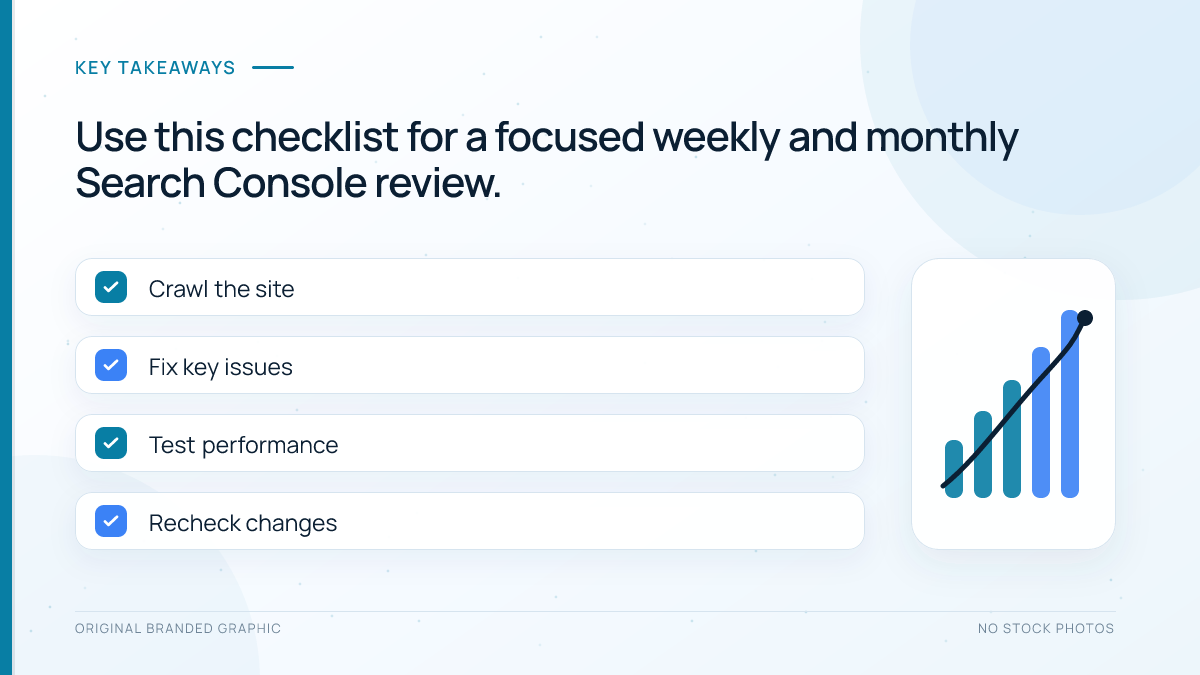
A Simple Search Console Review Routine
Weekly Review
- Check messages, security issues, and manual actions.
- Review recent clicks and impressions for unusual changes.
- Inspect newly published priority pages after Google has had time to discover them.
- Watch for new indexing errors affecting important templates or sections.
- Record meaningful findings and the changes made in response.
Monthly Review
- Compare performance with the previous equivalent period and, where useful, the same season in the prior year.
- Find pages gaining or losing non-branded visibility.
- Review high-impression, low-click opportunities by query and page.
- Check whether important indexable pages remain indexed.
- Review sitemap health, page-experience trends, rich-result issues, and internal-link patterns.
- Match organic landing-page performance with conversions or engagement in Analytics.
You do not need to stare at Search Console every day. A consistent review rhythm is more useful than reacting to every small fluctuation.
Common Google Search Console Mistakes
- Treating average position as an exact rank: it is an aggregate influenced by query, location, device, result layout, and time.
- Trying to index every discovered URL: healthy sites often contain redirects, duplicates, and deliberately excluded pages.
- Requesting indexing before fixing the page: a request does not override a crawl block,
noindex, broken response, or conflicting canonical signal. - Using the wrong property: a URL-prefix property can omit other protocols, subdomains, or folders.
- Changing titles based only on low CTR: assess position, intent, SERP features, brand demand, and relevance first.
- Comparing clicks and sessions as if they were identical: Search Console and Analytics use different definitions and systems.
- Assuming Search Console contains every query and backlink: some data is limited, grouped, anonymized, or sampled for reporting.
- Making several major changes at once: when everything changes together, it becomes difficult to learn what helped or hurt.
Google Search Console Best-Practice Checklist
- Use a Domain property for a complete view when you can verify through DNS.
- Keep ownership verification active and review user access periodically.
- Submit a clean sitemap containing canonical, indexable URLs.
- Analyze query-page pairs instead of relying only on site-wide totals.
- Compare meaningful time ranges and account for seasonality.
- Prioritize important pages rather than chasing every reported URL.
- Fix website causes before requesting validation or indexing.
- Use annotations or a change log so performance shifts can be connected to actual work.
- Combine Search Console with Analytics to connect visibility with engagement and conversions.
- Document findings, decisions, actions, and outcomes for each significant SEO change.
Frequently Asked Questions
Is Google Search Console free?
Yes. Google Search Console is free for website owners and authorized users. You need a Google account and access to a verified property. Costs may arise only from separate work, such as developer help, SEO software, or website fixes identified through the reports.
Does Google Search Console improve rankings?
No. Adding a site to Search Console does not create a ranking boost. The tool helps you measure visibility, discover opportunities, and diagnose issues. Rankings can improve when you use that information to make genuinely helpful content, technical, and website-quality improvements.
How often should I check Google Search Console?
A weekly review is practical for most active websites, with a deeper monthly analysis. Check it sooner after major launches, migrations, template changes, or unexpected traffic drops. Search Console can also send email alerts when Google detects certain new issues.
Why is a page not indexed even after I request indexing?
An indexing request is not a guarantee. Google may find a crawl block, noindex directive, server problem, duplicate page, conflicting canonical signal, weak value, or another reason not to index the URL. Inspect the page, fix the underlying cause, strengthen discovery signals, and allow time for recrawling.
Why do Search Console clicks differ from Google Analytics sessions?
A click records an interaction with a Google Search result, while a session records a period of activity measured on your site. Tracking consent, blocked scripts, canonical URL reporting, attribution, time zones, and repeat visits can create further differences. Compare trends rather than expecting identical totals.
Can Search Console show traffic from AI Overviews and AI Mode?
Google includes traffic from its AI search features within overall Search Console performance reporting under the Web search type. Search Console can therefore reflect their contribution to Google Search traffic, but aggregated reporting may not provide a complete, separate view of every AI citation, mention, impression, or click.
Conclusion
Google Search Console turns Google’s view of your website into information you can act on. It helps you understand which queries and pages earn visibility, whether important URLs are indexable, and where technical or content improvements may have the greatest effect.
Start with a correctly verified property, learn the Performance, Page indexing, URL Inspection, and Sitemaps reports, and review them on a consistent schedule. The goal is not to make every chart perfect. It is to use reliable evidence to make better SEO decisions, validate the results, and build a website that Google can access and people genuinely want to use.