
Quick answer: The Google Search Console Generative AI performance report shows how often links to your site appear in Google Search generative AI features. Use it to compare impression trends, identify visible pages, and break results down by country, device, date, and search type. Treat it as Google-specific visibility data, not a complete record of AI citations, mentions, clicks, or conversions.
Key Takeaways
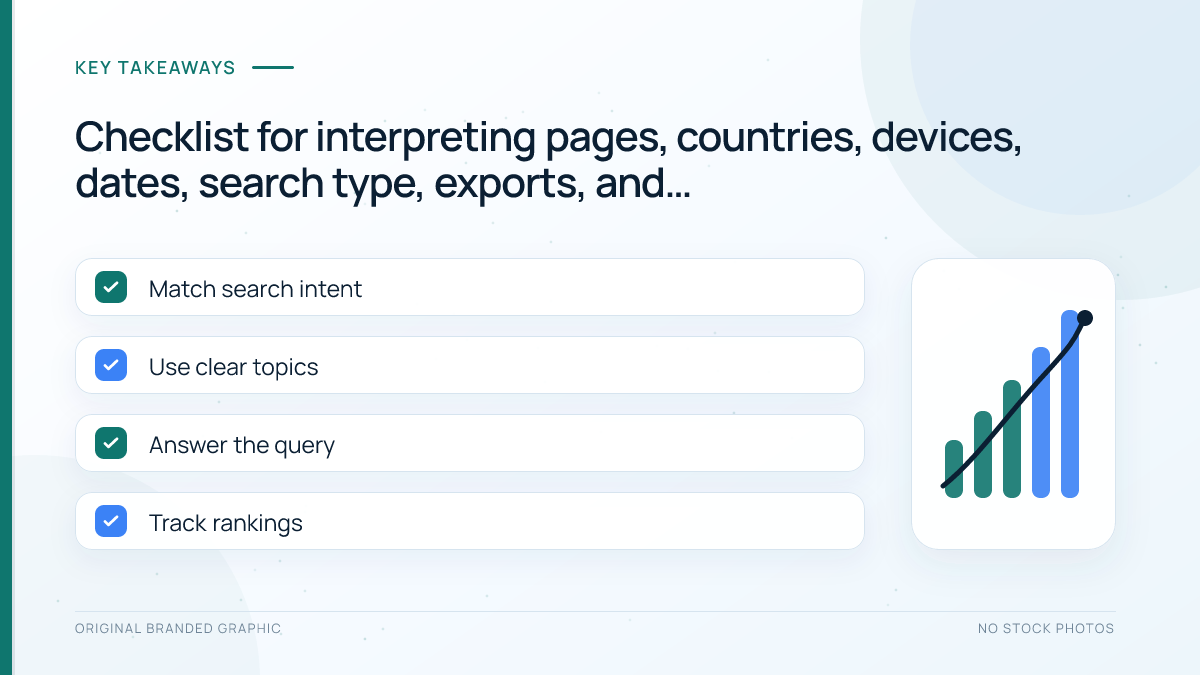
- The report includes impressions from AI Overviews and AI Mode on Google Search.
- It measures impressions rather than a comprehensive AI visibility score.
- Pages are generally grouped by canonical URL, so verify canonicalization before diagnosing missing rows.
- Compare settled date ranges and avoid drawing conclusions from preliminary dotted-line data.
- Use GA4 separately for landing-page engagement and identifiable referral sessions.
What You Need Before You Start
You need a verified Search Console property with access to its performance reports. Choose the property that represents the pages you manage and keep using that same property for comparisons. Record the date, property, date range, filters, and exported filename for every review so another person can reproduce it.
Google’s Generative AI performance report documentation says the report reached all websites worldwide on August 31, 2026. A site may not see it without enough impressions, so absence is not proof of a tracking fault.
What the Generative AI Report Measures
Google defines an impression as a link to your site being shown in a generative AI feature. The report currently includes AI Overviews and AI Mode, while Search Labs experiments are excluded. The available dimensions are pages, countries, dates, and devices. Search type can separate text-based web searches from multimodal searches involving images, including Google Lens and related visual-search surfaces.
| Report view | Question it answers | Important caution |
|---|---|---|
| Pages | Which canonical URLs appeared most often? | A duplicate URL may be assigned to its canonical. |
| Countries | Where did generative AI impressions originate? | Country is the search origin, not the reader’s identity. |
| Devices | Were searches made on mobile, desktop, or tablet? | Device differences do not explain user intent by themselves. |
| Dates | How did impressions change over time? | Newest dotted-line data can still change. |
| Search type | Was discovery text-based or multimodal? | It does not reveal every underlying query. |
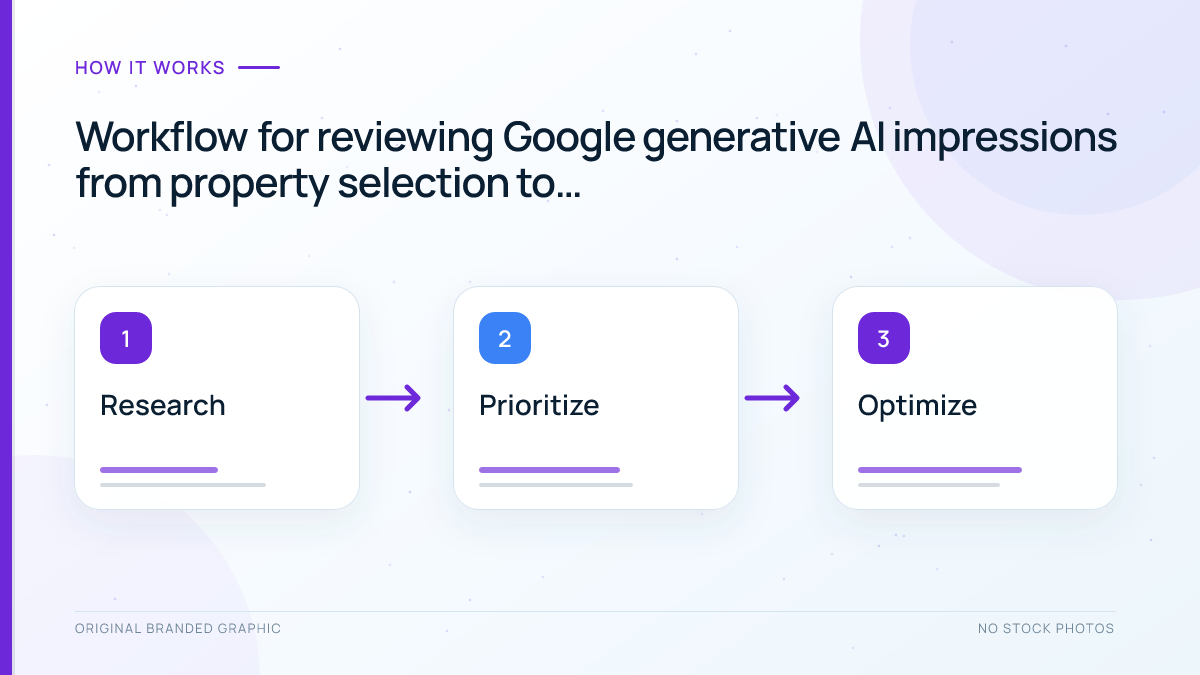
How to Use the Report Step by Step
1. Confirm the Property and Inclusion Setting
Open Search Console, select the intended property, and go to the report. If it is missing, check whether the property has enough impressions. Then review Settings and the Search generative AI control. Google says inclusion is the default, while a child property may inherit a parent setting. Excluding a site prevents its links and content from appearing in the covered features.
2. Set a Stable Date Window
Compare the latest complete 28 days with the previous 28 days. Exclude preliminary dates shown with a dotted line. Search Console uses Pacific Time, so record report dates rather than translating them. A longer window may help when data is sparse.
3. Review the Pages Dimension
Sort pages by impressions and separate established pages from recently published URLs. Ask whether each visible page satisfies a distinct reader task and still contains accurate information. Open the exact canonical page before planning changes. Use the broader Google Search Console guide when you need help with properties, reports, and URL inspection.
Do not assume the highest-impression page is the best page or that a low-impression page needs rewriting. A specialist page may serve a smaller audience. A new page may simply need time to be crawled and evaluated. If the report assigns data to an unexpected URL, check the page’s canonical setup and review the site’s indexing workflow.
4. Segment by Country and Device
Use country and device views to find material differences worth investigating. For example, strong mobile impressions with weak desktop visibility can guide a page-experience review, but it does not prove a technical problem. Likewise, a country concentration may reflect the topic, language, season, or available data. Keep the segment attached to the same date range and search type before comparing it with another period.
5. Compare Text-Based and Multimodal Search
Switch between Web: text-based and Web: multimodal. If a visual guide appears in multimodal search, review whether its images and surrounding explanations accurately communicate the subject. Apply normal image SEO practices, including descriptive alternatives for informative images. Do not add decorative images merely to chase multimodal impressions.
6. Export and Annotate the Baseline
Export the chart and table data, then save a simple record with the property, range, filters, and observations. Google notes that values displayed as a tilde or dash become zeros in exports, so preserve that caveat. Use the same configuration at the next review. A repeatable baseline is more useful than a screenshot without context.
Illustrative Worked Example
Suppose a fictional SEO site compares two complete 28-day periods. Generative AI impressions rise from 120 to 165. Three pages account for most of the increase: a technical checklist, a source-auditing guide, and an updated measurement tutorial. Mobile contributes 120 impressions, desktop 40, and tablet 5.
| Observation | Reasonable next action | Unsupported conclusion |
|---|---|---|
| Technical checklist gains 30 impressions | Verify accuracy, canonical URL, and reader usefulness | The recent edit caused every gain |
| Mobile dominates the device view | Check mobile usability and content clarity | Desktop pages have a technical penalty |
| Source guide appears in several countries | Review examples for broad comprehension | Google considers the brand globally authoritative |
| No row for a new article | Confirm crawlability and wait for settled data | The article is permanently excluded |
This example is illustrative, not a case study. The correct response is to verify the pages, document changes, and observe the next comparable window. For a wider workflow that also tracks other platforms, use the guide to tracking AI search visibility for free.
Troubleshooting Common Problems
- The report is missing: check property access, impression volume, and the generative AI inclusion setting. Do not diagnose broken tracking from absence alone.
- Chart and table totals differ: Google says property-level and page-level aggregation can produce discrepancies.
- A duplicate URL is absent: performance is generally assigned to the canonical URL, so inspect the canonical page.
- Exported symbols become zeros: retain a note that unavailable values shown as a tilde or dash are exported as zero.
- Impressions rise but GA4 traffic does not: an impression is not a visit. Review landing-page sessions and engagement separately.
Limitations and Honest Measurement
The report covers Google’s supported generative AI features, not ChatGPT, Perplexity, Claude, or every AI surface. It does not provide a universal citation rank, full prompt text, or proof that a page was quoted. It also inherits Search Console limitations, including row limits and privacy-related omissions. Avoid combining it with unverified manual prompt tests and presenting the result as complete market share.
Use the report alongside page quality checks, ordinary Search performance, and analytics. Review factual support with the AI search source audit, and evaluate meaningful updates through the AI search content refresh workflow. Changes can improve usefulness and eligibility, but they cannot guarantee impressions or citations.
Frequently Asked Questions
What does the Generative AI performance report measure?
It measures impressions from supported generative AI features on Google Search, showing how often links to your site appeared and how those impressions are grouped.
Does the report include AI Overviews and AI Mode?
Yes. Google currently lists AI Overviews and AI Mode as included features, while active Search Labs experiments are excluded.
Why can I not see the report in Search Console?
Your property may not have enough generative AI impressions, or its inclusion control may exclude the site. Missing data alone does not prove a technical fault.
Are generative AI impressions the same as visits?
No. An impression means a link was shown. A visit requires a user to click or otherwise reach the site, which should be evaluated separately in analytics.
Can this report measure every AI citation or mention?
No. It covers supported Google Search features and does not measure every citation, mention, prompt, assistant, or AI platform.
Conclusion
Use the Google Search Console Generative AI performance report as a focused Google visibility dataset. Select the correct property, compare complete windows, review canonical pages, segment countries and devices, separate text and multimodal search, and export a reproducible baseline. Pair the findings with page reviews and analytics, and describe the limits honestly rather than converting impressions into unsupported claims.