A WordPress HTML sitemap is a public directory that groups useful published pages and posts into understandable sections. Build it with headings and ordinary linked lists, connect it from an existing navigation area, and verify every destination. It can make a growing learning library easier to explore; it does not guarantee indexing or AI citations.
This tutorial creates a small, manually maintained directory without a paid plugin. It addresses navigation across the website, rather than a glossary of definitions or a table of contents within one article.
What You Need Before Building the Directory
You need permission to publish a WordPress page, edit its blocks, and add a navigation link. Prepare an inventory of public content with its title, final URL, topic, status and intended reader. Keep drafts, private pages, login areas and preview links out of this public list.
Choose a maintenance owner and record the directory’s purpose: for example, helping beginners locate the next practical lesson. Review your website architecture before adding another index that duplicates an already useful learning hub.
HTML Sitemap, XML Sitemap or Category Archive?
| Resource | Main job | What belongs there |
|---|---|---|
| HTML directory | Help visitors choose a resource | Grouped links with brief explanations |
| XML sitemap | Supply URL information to search engines | Eligible URLs and supported metadata |
| Category archive | Browse a topic’s published posts | Posts assigned to that category |
An HTML directory complements these resources. It should not replace your working XML sitemap or create duplicate copies of articles. Google explains that sitemap files help URL discovery without guaranteeing crawling or indexing. A human-facing directory earns its place by making choices clearer.
For a small site with excellent menus and categories, another directory may add little. Build one when readers need a cross-topic overview, older guides are buried in chronological archives, or several content types belong in one learning path.
Build a WordPress HTML Sitemap in Three Stages
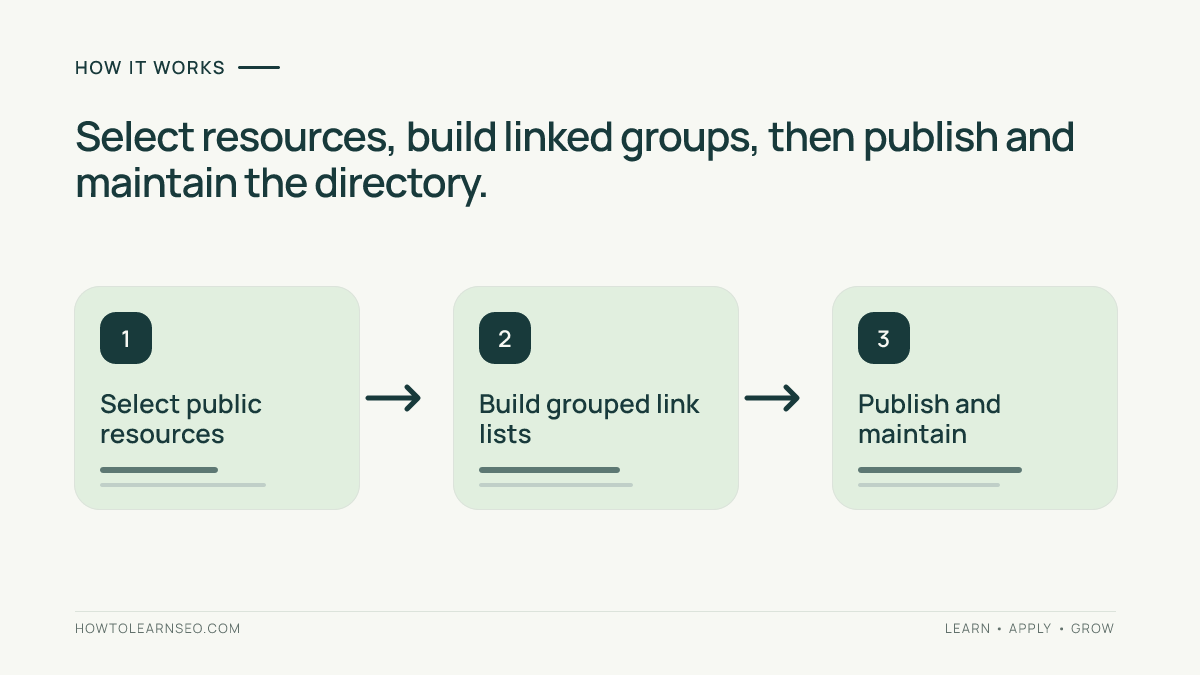
1. Select and group useful destinations
Start with reader tasks, not every taxonomy or URL your system generates. Group an SEO library into sections such as Start Learning, Fix Technical Problems and Measure Results. Use the existing topic-cluster structure to choose relationships without copying each guide’s introduction.
For every destination, ask whether the page is public, current, useful and distinct. Exclude duplicate parameter URLs, obsolete offers and search-result pages. A curated directory can be selective; call it a learning directory rather than a complete sitemap if it deliberately omits large parts of the site.
2. Create headings and linked lists
In WordPress, open Pages, choose Add New and give the page a clear title, such as Learning Directory. Write one sentence describing its scope. Add an H2 Heading block for each group, then insert a List block beneath it.
Type a descriptive resource name in each list item. Select that text, use the link control or Ctrl+K on Windows or Cmd+K on Mac, and paste the exact public URL. Confirm the link, then add a short explanation after it when the title alone is unclear. WordPress documents these List block link controls.
Keep the page title as its main heading and use H2 for groups. Avoid dozens of nested levels. A plain vertical list is easier to scan on a phone than a dense grid. If using an automatic page-list feature, check its output carefully: a page directory is not necessarily a directory of blog posts.
3. Publish, connect and assign upkeep
Preview the page on desktop and mobile, then publish when the links and descriptions are correct. Add a descriptive link from an appropriate footer, learning hub or menu using the navigation method available in your theme. Confirm that a signed-out visitor can reach it from that location.
Record who adds new resources, who removes obsolete entries and when the next review is due. For a busy publication, checking the directory after each publishing batch is more dependable than waiting for an annual cleanup.
Illustrative Example: A Small SEO Learning Directory
Imagine a site with twelve lessons scattered across date archives. The following is an illustrative editorial plan, not a report of a tested website. The editor groups existing lessons by the job a reader wants to complete.
| Group | Example resource labels | Selection reason |
|---|---|---|
| Start Learning | Search intent; keyword research | Establish the planning foundations |
| Fix Technical Problems | Robots rules; broken pages | Resolve access and navigation faults |
| Measure Results | Search Console; analytics basics | Interpret outcomes after implementation |
The editor links each label to the corresponding published lesson and adds one short description. The directory does not reproduce full tutorials or generate a new page for every synonym. If two lessons appear interchangeable, review their purpose before presenting both as required steps.
Verify the Public Page Before Calling It Finished
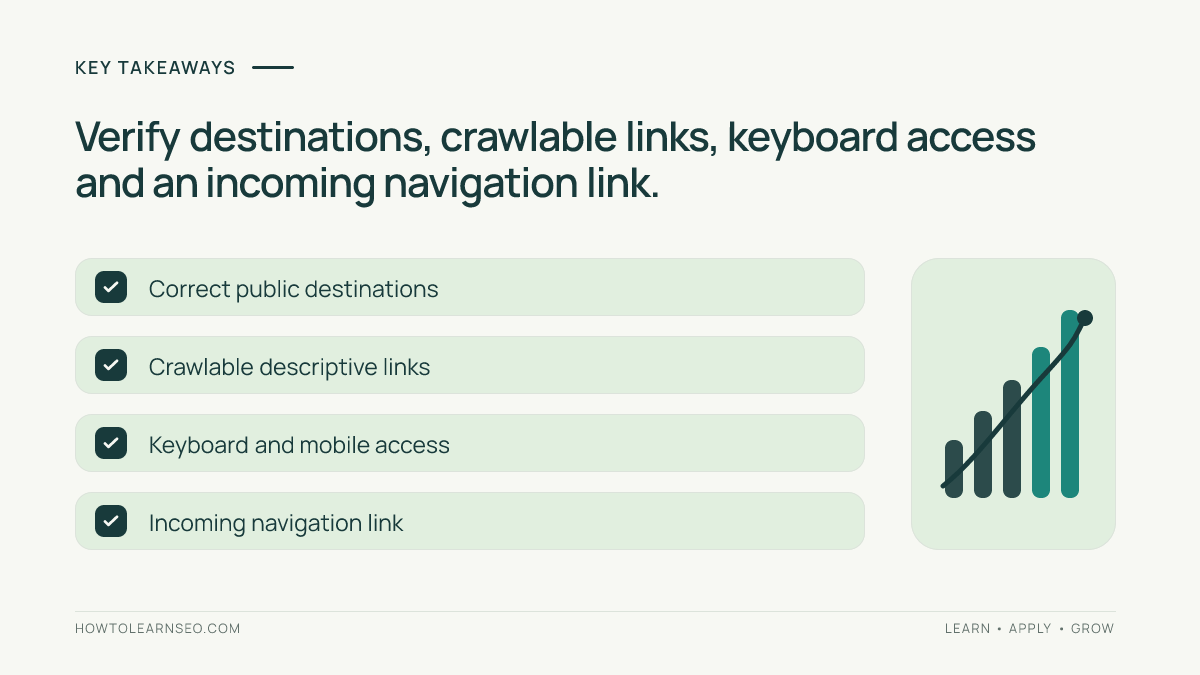
Open the live directory in a signed-out browser. Follow every listed link, checking that it reaches the intended final page without a login, broken response or unrelated redirect. Use your browser’s inspection tools to confirm ordinary anchor links with real href destinations. Google’s link guidance recommends crawlable links and descriptive anchors; the internal-linking guide explains the wider editorial practice.
Tab through the page with a keyboard. Check visible focus, readable link wording and mobile wrapping. Verify that the directory itself has an incoming navigation link. For search eligibility, inspect its public robots directives and canonical, then use Search Console URL Inspection where access is available. The indexing guide covers diagnosis; a live page alone does not establish indexed status.
Troubleshooting and AI Search Limitations
- New articles are missing: update the manual list or check whether an automatic block includes posts as well as pages.
- Visitors cannot find the directory: verify its incoming navigation link, not just its publication status.
- The list becomes overwhelming: split it into meaningful topic hubs with clear links, rather than hiding essential navigation behind filters.
- Search visibility does not change: separate discovery, indexing, content quality and demand before assuming the directory failed.
Google’s AI-search guidance emphasizes useful content and foundational SEO. An HTML directory is a navigation aid, not a special AI inclusion file. It does not override crawler restrictions or require training-bot access. Assess whether readers find useful lessons first; any citation or traffic outcome needs separate evidence.
Frequently Asked Questions
Does every WordPress site need an HTML sitemap?
No. A small site with clear menus and well-organized categories may already provide sufficient navigation. Add a directory when it solves a real discovery problem, such as older lessons being buried or related resources living in different sections.
Can an HTML sitemap replace an XML sitemap?
They serve different purposes. The HTML page helps people browse, while an XML sitemap provides URL information for search engines. Keep a working XML sitemap and maintain useful internal navigation rather than choosing one as a universal replacement.
Do I need a plugin to build the directory?
No. A standard WordPress page with headings and linked lists is enough for a modest collection. Automation can help a larger library, but you still need control over included content, grouping, public links and ongoing maintenance.
Should I submit the HTML directory in Search Console’s Sitemaps report?
Do not submit an ordinary navigation page as a sitemap file. Use a supported sitemap format in that report. You can inspect the directory URL separately and connect it through normal internal links so visitors and crawlers can discover it.
Will this directory make assistants cite my website?
No directory guarantees a mention or citation. Clear navigation can support discovery, but eligibility, content usefulness and each platform’s systems still matter. A crawler request, a citation and a visitor session are different observations and should not be combined into one visibility claim.
Conclusion
A useful WordPress HTML sitemap turns a growing archive into understandable choices. Select public resources, group them by reader task, build ordinary linked lists and verify the live paths. Keep an owner responsible for updates so the directory remains helpful as the library grows.