A Pinterest business account can report that a WordPress website is unclaimed even after its owner has saved a verification tag. The tag may exist in the dashboard but not in the public homepage HTML. A cache might be serving yesterday’s page, or the submitted domain may redirect somewhere unexpected. Repeatedly pressing Verify does not explain which part failed.
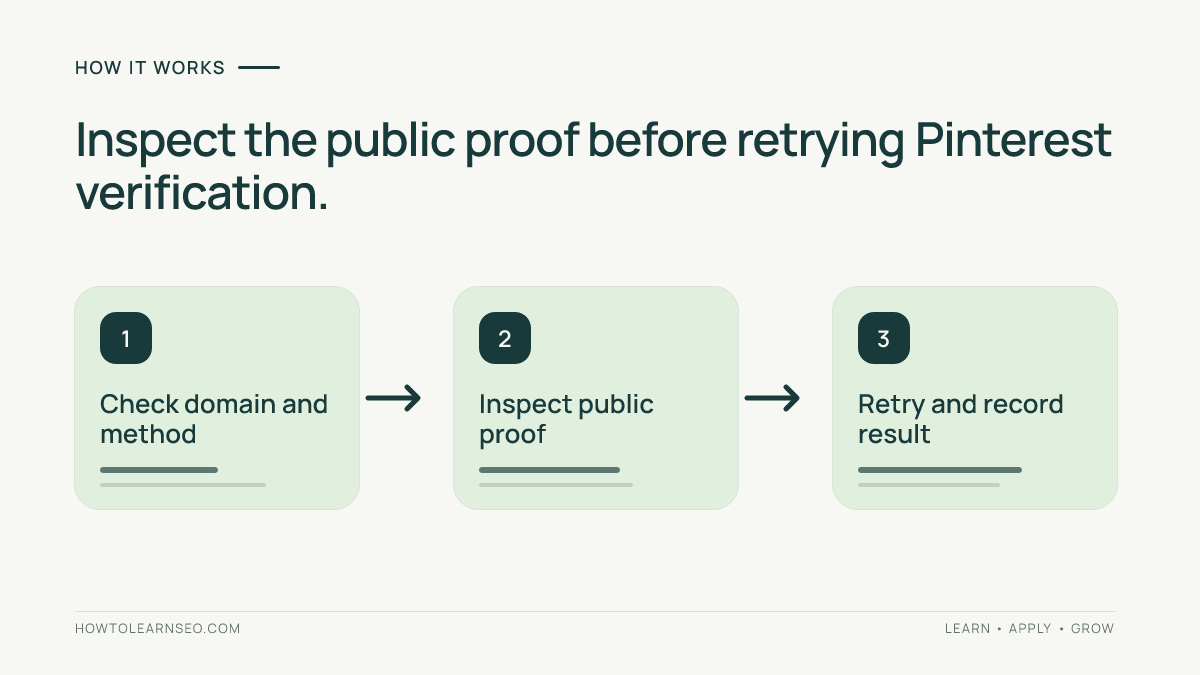
Troubleshooting Pinterest website claiming on WordPress works best as a sequence of observable checks: identify the domain, confirm the chosen proof method, inspect what an ordinary visitor receives, and change only the failing layer. The following diagnostic workflow includes a reproducible fictional example, recovery paths for different verification methods, and a clear distinction between successful claiming and actual website traffic.
Start with the domain and the exact error
Open the website claiming area of the intended Pinterest business account. Copy the submitted domain into a private troubleshooting note. Record the error wording, the chosen verification method, and the date of the attempt. Do not publish the private verification token in screenshots or support forums. If an agency previously managed the account, establish which business account is meant to control the claim.
Compare the submitted domain with the address shown after opening your public homepage. Does the browser finish on www or non-www? Does an old domain redirect to a new one? A WordPress dashboard URL is not proof of the final public address. The verification method and domain should match the property you actually operate.
Use Pinterest’s official claiming guidance to confirm the methods currently offered to your account. Interface labels and eligibility can change. Do not rely on an old screenshot or assume that every website host supports every method.
Sort the failure before touching WordPress settings
Separate three observations. First, a tag saved in WordPress but missing from public source suggests a placement, output, or cache problem. Second, a correct tag visible publicly with continued rejection suggests a domain, token, access, or account problem. Third, a successful claim with weak traffic is not a claiming failure at all; that belongs to Pin content and measurement.
Create a tiny troubleshooting log with columns for observation, test, expected result, and next action. A row might say: “Token missing in logged-out page source; purge homepage cache; expect exact token inside head; if absent, inspect insertion plugin.” Another might say: “Token visible, wrong business account; compare account-issued value.” This keeps each change accountable.
Do not remove old verification tags simply because you see duplicates. Determine which account issued them and whether a legitimate claim depends on them. Multiple administrators can create confusion that looks like a technical problem.
Make sure the proof matches the method
A Pinterest meta tag, an HTML file, and a DNS record prove ownership in different places. A meta tag must appear in the public document head with the exact attributes and token supplied by Pinterest. An HTML file must be available at the prescribed public path. A DNS record must exist at the authoritative DNS provider. Completing one method does not automatically satisfy a different method.
For a meta tag, use a trusted WordPress integration or header insertion feature. Paste the complete snippet rather than only a shortened token unless the specific field asks for the token alone. Save the setting and confirm the feature is active on the live frontend, not just the administration preview. Avoid editing parent-theme files that may be overwritten by updates.
A plugin saying “saved” proves only that its setting was stored. The next test must check whether the public homepage actually delivers the proof. If your website uses a separate frontend, staging installation, or multiple WordPress sites, the dashboard you edited might not control the HTML Pinterest receives.
Inspect the delivered homepage HTML
Open the production homepage in a private browser window while logged out. Choose View Page Source and search for the Pinterest verification token or meta-tag name. For this check, delivered source is more informative than a page-builder preview or the live DOM after scripts have changed it. The token should appear exactly as issued, inside the head.
Check the final redirected URL too. A homepage can redirect from one hostname to another while different caches or WordPress installations serve the two versions. Record whether the correct token appears once, appears with an outdated value, or is absent entirely. A token printed in an article paragraph is not a valid substitute for the required head markup.
If the tag is absent, inspect the header insertion settings and clear the appropriate cache. If it is present, stop repeatedly reinstalling the same plugin. Continue with hostname, access, and token checks. Keep the actual token out of public troubleshooting notes.
Work through caching and redirects carefully
WordPress may have a page-cache plugin, hosting cache, and content delivery network cache. Purge the public homepage at the relevant layer, reload it while logged out, and inspect source again. A browser hard refresh cannot guarantee that a CDN or host has replaced its stored HTML. Record the result after each change.
Follow redirects from both www and non-www versions if your site uses them. The important question is whether the submitted property resolves to the intended public site with its required verification proof. Avoid changing canonical tags, redirect rules, or DNS solely because Pinterest returned a vague error; those settings also affect other website functions.
Do not switch off every security and performance plugin at once. Broad changes can create unrelated problems and conceal the original cause. If you suspect a cache or firewall, change one setting, retest, and restore it if the evidence does not support the hypothesis.
Worked example: a verification tag trapped behind a cached homepage
Consider an illustrative WordPress site, example-garden.test, whose owner submitted the public domain to Pinterest. The owner pasted the supplied tag into a header plugin and saved it. Pinterest rejected the claim. The inputs are the submitted hostname, the private account-issued token, the logged-out homepage source, and the cache configuration. This is a fictional diagnostic scenario, not a report of a live test.
First, the owner opens the public homepage source and searches for the token. Suppose it is missing, although the dashboard field contains it. The owner checks that the plugin inserts into the public head, then purges the homepage cache. A new private-window source check now displays one exact matching meta tag inside the head. That visible change is the expected output of the local repair.
Only after that observation does the owner retry verification in the same Pinterest business account. If Pinterest confirms the claim, the task is complete. If Pinterest still rejects it, the owner checks whether the account-issued token matches, whether the submitted hostname is correct, and whether a firewall blocks the verification request. A CDN serving different cached HTML to automated clients is an edge case requiring additional host-level evidence.
Write down what was actually verified. “Tag appears in public HTML” and “Pinterest accepted the website” are different statements. The first can be checked independently; the second requires confirmation from Pinterest. Never invent a successful result because the WordPress plugin displays a green check.
When the tag is visible but claiming still fails
Copy the current token again from the intended Pinterest business account and compare it character by character with the delivered source. A tag issued to a different account can be syntactically correct yet unsuitable for the account attempting the claim. If another team manages the website, establish account ownership before changing the proof.
Review the final hostname and redirect chain. Check whether the homepage is publicly accessible without a login, maintenance screen, bot challenge, or geographic restriction. If you can access security logs, look for specific blocked requests near the verification attempt. One normal browser load does not prove an automated verifier can access the site.
If the token and domain are correct but Pinterest still rejects the claim, preserve the error text, time, and public observations and use official Pinterest support. Avoid guessing at undocumented crawler identifiers or disabling site-wide protection without evidence.
DNS and HTML-file methods have different failure points
For DNS verification, create the exact record type, host label, and value requested at the provider authoritative for the domain. Your WordPress host and DNS provider may be different companies. DNS updates can take time to become visible through external resolvers. Confirm the record exists before treating an immediate rejection as a permanent failure.
For an HTML-file method, verify that the exact requested path returns the expected file publicly. Uploading the file to the WordPress media library may produce a different path. A redirect to the homepage, a 404 response, or a login screen does not demonstrate that the requested file is accessible.
Choose one supported method and complete it correctly. Do not install a random plugin to simulate a method Pinterest does not offer to your account. Keep a note of where the proof is stored so future site migrations do not accidentally remove it.
Use security logs rather than broad firewall exceptions
A security plugin, host firewall, or CDN can sometimes challenge automated requests while serving a normal page to humans. Check logs for a relevant event around the time Pinterest attempted verification. If you lack access, ask the hosting provider to examine the specific request and response. Do not publish access logs containing private identifiers.
An indiscriminate allowlist or complete shutdown of bot protection can create security risk. Make only narrow, justified changes and retest the claim. If the verification method uses DNS rather than an HTTP request, investigating homepage bot challenges may be a distraction.
WordPress SEO settings are separate from Pinterest website claiming. A noindex tag may affect search indexing, but changing it is not a substitute for the proof Pinterest asks for. Likewise, a successful Pinterest claim does not guarantee that Google will index the site’s posts.
After verification, test the traffic journey separately
When Pinterest confirms the claim, open one relevant Pin and test its outbound link on mobile. Check that the destination page delivers the promise made by the image and title. Use the site’s Pin-to-landing-page relevance audit to check this relationship. Verification does not rescue a broken link or misleading creative.
Improve the descriptive message using the Pin title and description guide, then organize related content with the Pinterest board planning tutorial. Each Pin should represent a genuine angle supported by its destination. Do not promise instant referral traffic.
Track visits with the GA4 and UTM workflow. Pinterest outbound clicks and GA4 sessions measure different events and may not match exactly because of consent, loading, and attribution. Refer to Pinterest Analytics documentation for available reporting metrics.
Prepare an evidence packet before requesting help
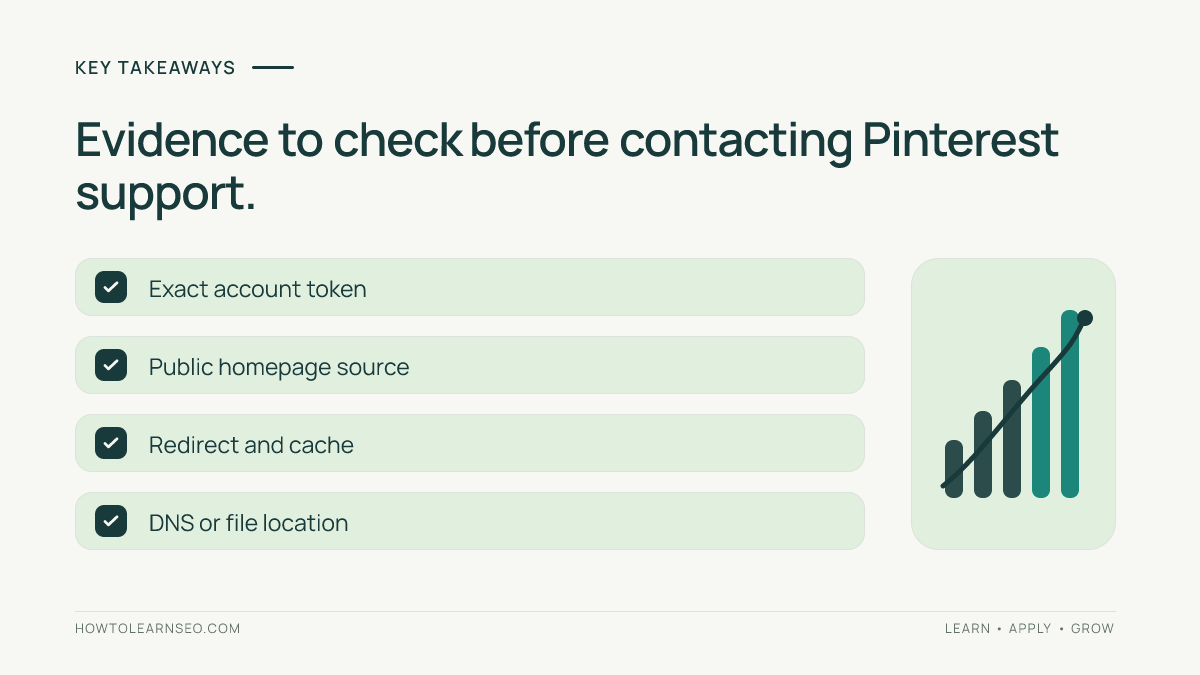
Record the business account, submitted hostname, chosen method, exact error, last attempt time, and the public result. For a meta tag, record whether it appears in the head of the final homepage. For an HTML file, record its required path and response. For DNS, record whether the authoritative provider shows the requested record.
Remove private tokens and account credentials from anything shared publicly. Keep the original proof secure so you can compare it when talking with official support. If the site recently migrated, note which installation and CDN now serve the homepage. An evidence packet is more useful than repeatedly stating that the plugin was saved.
For background on WordPress frontend output, see the WordPress theme documentation. The exact interface depends on the active theme and plugins, so confirm your own implementation rather than copying a screenshot from another website.
Frequently Asked Questions
Can I claim a WordPress website without Rank Math PRO?
Yes. Pinterest website claiming is a Pinterest verification process rather than a Rank Math PRO feature. Use a method offered in your business account.
Why is my Pinterest verification tag missing from the homepage?
It may be saved in the dashboard but absent from public HTML because of placement, caching, or a different frontend. Check logged-out page source first.
Should I delete an older Pinterest verification tag?
Not automatically. Identify the account that issued the old tag and determine whether an existing claim depends on it before removing anything.
How long does DNS verification take?
DNS updates may not be immediately visible through every resolver. Check the authoritative provider and allow for propagation before repeating verification.
Does claiming my website make Google index my articles?
No. Pinterest claiming and Google Search indexing are separate processes. Use Google Search Console to investigate indexing problems.
What if the correct tag appears but Pinterest still rejects my domain?
Check the submitted hostname, account-issued token, redirects, and access controls. Save the error details and contact Pinterest support if necessary.
Conclusion
Start with the failed claim’s public evidence: the submitted domain, the exact verification proof, and what the live website actually serves. Fix one mismatch at a time, confirm the change, and then retry Pinterest. After the claim succeeds, assess Pins and website visits as a separate task.